
Converting video
The Video tab shows every file that has been scanned, as a folder tree. Tick what you want and press Convert. This page explains the tab, its filters and the options in the Convert dialog.
What the scan offers
Smart Transcode scans the root folders you added (.mkv .mp4 .avi .ts .m4v .mov) and reads each file's video codec, resolution and bitrate. A file is a candidate when it is in an older codec (H.264, MPEG-2, MPEG-4, VC-1…) and its bitrate is above a guide for its resolution:
| Resolution | Bitrate guide |
|---|---|
| 2160p and above | 8,000 kbps |
| 1080p | 2,500 kbps |
| 720p | 1,500 kbps |
| Below 720p | 900 kbps |
Files already in HEVC, AV1 or VP9, and files at or below the guide, are already efficient: they are listed but not offered, because re-encoding them rarely saves space. You can override that with Convert regardless of savings (below).
The page
- Root folder
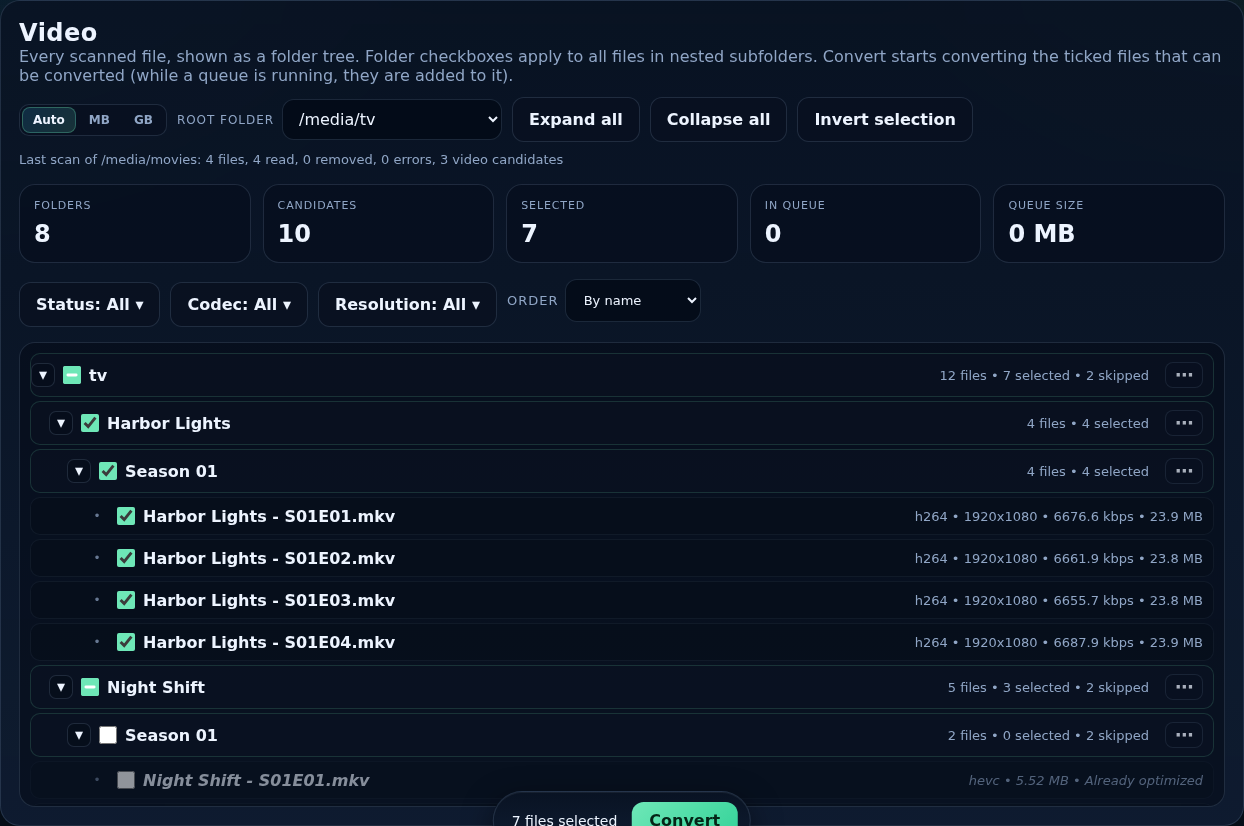
- When you have several root folders, a drop-down chooses which one the tree shows. Each root folder is shown on its own.
- Scan status
- Above the tree: what is being scanned or waiting to be scanned. Scans start by themselves (a full scan when a folder is added, then new and changed files on the interval in General). Each folder has a ⋯ menu to rescan it at once.
- Counts
- Folders, Candidates, Selected (ticked), In Queue and Queue Size.
- Size unit
- A switch for how sizes are shown (KB … PB, or automatic). It applies to the whole page and is remembered in your browser.
- Expand all / Collapse all
- Open or close every folder in the tree.
- Invert selection
- Ticks the files that are not ticked and unticks the ones that are.
Filters
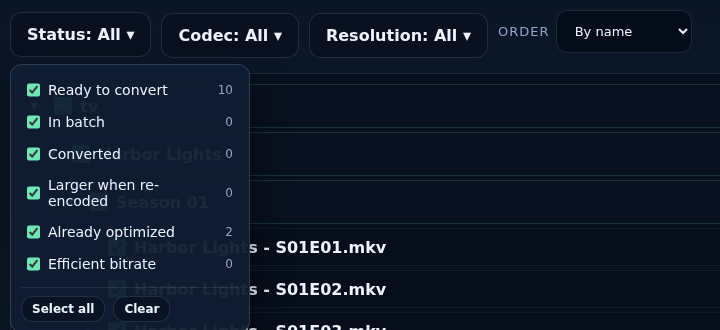
Three filters (and an order) narrow what the tree shows. Each filter is a button that opens a list of choices with how many files each has; tick any number of them. A file shows when it matches all the filters. The choices are not remembered when you reload the page. Files a filter hides are unticked.
- Status
- Ready to convert: a candidate that is not in a queue.
- In batch: waiting or converting in the queue.
- Converted: already converted by Smart Transcode.
- Larger when re-encoded: an earlier conversion came out bigger than the original, so the original was kept.
- Already optimized: already in an efficient codec (HEVC, AV1, VP9).
- Efficient bitrate: in an older codec, but at or below the bitrate guide.
- Codec
- The video codec of the file (H264, HEVC, MPEG4…), with a count for each.
- Resolution
- The picture size (1920x1080, 1280x720…), largest first.
- Monitored and Tag
- Appear only when Sonarr or Radarr is connected: filter by whether the series or movie is monitored there, and by its tags.
- Order
- By name, Largest first or Smallest first, for the files and folders.
Ticking files and folders
- Tick a file to select it. A file that cannot be converted (already converted, already in a queue) cannot be ticked.
- Tick a folder to select everything under it. If no file in it is ticked, one click ticks them all; if some or all are ticked, one click unticks them (a half-ticked folder is cleared, not filled). Half-ticked folders show a dash.
- Your selection is saved per folder, so it is there when you come back.
- The tree stays quick on big libraries: ticking a folder of 30,000 files takes a fraction of a second.
Some files carry a marker: hard-linked (another file shares the data, usually a torrent that is still seeding; converting it writes a new file and the original stays on disk, so nothing is saved while it seeds) and may not save space (offered only because of Convert regardless of savings). Click a status to see why a file was or was not offered.
The Convert dialog
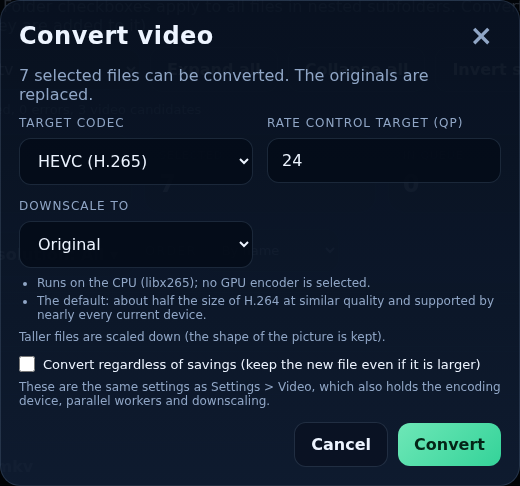
When files are ticked, a bar at the bottom shows how many and a Convert button. It asks for the settings below, tells you how many ticked files cannot be converted, and then adds them to the queue. While a queue is already running the button reads Add to queue: the files join the end of it.
- Target codec
- HEVC (H.265) by default. H.264 and AV1 are also offered, and H.266 (VVC) as experimental, when the chosen device can encode them. Notes under the box say what to know about the choice on this machine.
- Rate control target (QP)
- The quality target: a lower number means better quality and a bigger file. The recommended value for the codec is shown (HEVC 24). The scale differs between codecs, so use the range and wording the box shows.
- Downscale to
- Original, 480p, 720p, 1080p or 2160p. Files taller than the choice are scaled down, keeping the shape of the picture. Scaling down cannot be undone.
- Files already at or below that height
- When downscaling, either convert them at their own size (still saving space, without scaling) or skip them.
- Convert regardless of savings
- Keep the new file even if it is larger. Efficient files and files that came out larger before can then be ticked and converted. Files already in the target codec are still skipped.
These are the same options as Settings → Video, which also holds the encoding device, parallel workers and GPU decode and encode. Progress is on the Queue tab.
Every conversion is checked
The new file is written next to the original as a temporary file. Its tracks are counted (a file that lost any is discarded) and its size is compared with the original (unless you chose to convert regardless of savings); only then does it replace the original. A conversion that fails is retried (up to three attempts); if it still fails the original is left untouched. A file that changed while it was converting is never overwritten. How a conversion is processed