
Automation
Automation converts files without anyone pressing Convert. You choose folders to watch and give each a conversion profile; files in them that need converting are added to the video and audio queues using that profile's settings. It is off by default.
Conversion profiles define what happens
The settings used for automatic conversion (target codec, quality, downscaling, audio rules…) all come from a conversion profile. A profile called Default Conversion Profile exists from the first start, so you can begin right away.
How it works
- Root folders are scanned automatically (see General). After every scan of a watched folder, the files that need converting are added to the queues.
- Files are also queued when a profile is applied, when a queue ends (files that need audio and video are done audio first, then video), and when you press Check now.
- “Needs converting” for video means what the Video tab offers: candidates, and (with Convert regardless of savings) files skipped only for lack of savings. For audio it means files whose audio the profile would change.
- Files are skipped if they were already converted, failed permanently, came out larger before (unless converting regardless), are already in a queue, or are being worked on.
- If a queue is running, the files are added to it; otherwise a new queue starts. Pausing a queue also pauses automation's files.
- Each original is replaced by its converted file.
Set it up with the default profile
- Open Automation → Folders.
- Tick the folders to watch. Tick a whole library (a root folder) or individual folders. A ticked folder includes everything inside it. Each row shows the profile it uses next to the folder name.
- Choose a profile in the drop-down beside Apply. Pick Default Conversion Profile: HEVC at QP 24, no downscaling, original sizes kept, Convert regardless of savings off, and audio conversion off. Choose Stop converting automatically (remove) to take folders out.
- Click Apply. A confirmation names the folder (or says how many folders) and what will happen. Applying switches automation on if it is off and queues what is due right away.
- Check the switch. Convert automatically at the top shows whether automation is on. Turn it off to pause automatic conversion for every folder without losing your choices.
The default profile can be edited or deleted like any other. To convert audio as well, or use different settings for different libraries, create your own profiles.
The Folders page
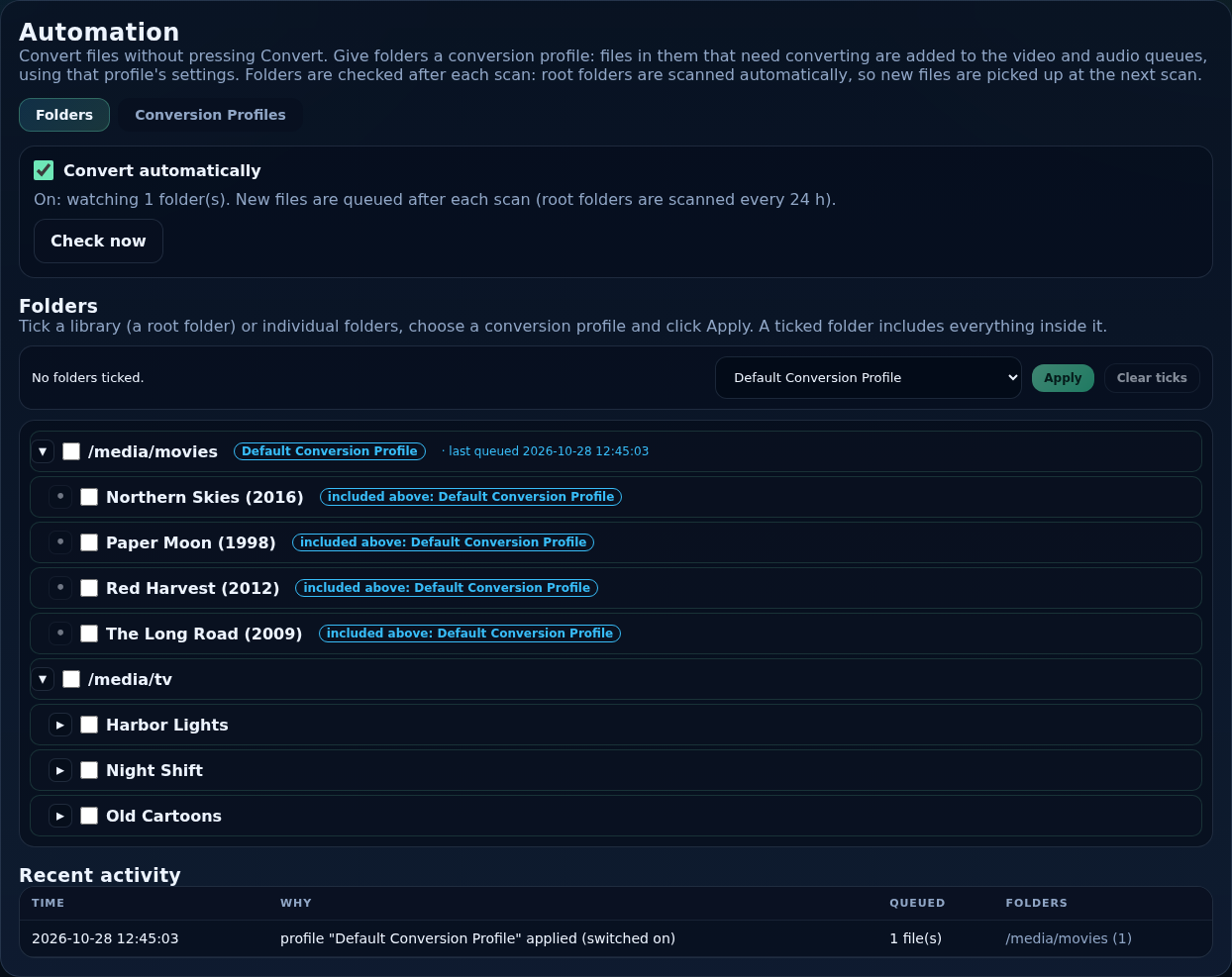
- Convert automatically
- The master switch. A summary beside it says what is watched.
- Check now
- Checks the watched folders immediately instead of after the next scan. Available while automation is on.
- Folder tree
- Tick folders as elsewhere. A folder inside a ticked folder shows included above: profile; give a subfolder a profile of its own and that one wins for its files. Folders set up before profiles existed show no profile and are left alone until you apply one.
- Recent activity
- A log of each run: Time, Why (profile applied, scan finished, queue ended, check now), Queued (how many files) and Folders.
Things to know
- A profile cannot be deleted while folders use it.
- Editing a profile changes the folders that use it from the next check. Applies to (all files or only new files) is fixed for a folder at the time you apply the profile.
- Files already in a queue when you stop automation for a folder are not removed from the queue.
- Automation needs the Automation permission when authentication is on (Security).