
Converting audio
The Audio tab shows the audio tracks of your files and converts the ones you choose, without touching the video. Use it to shrink surround tracks, drop languages you never use, or make files play on older equipment.
How it works
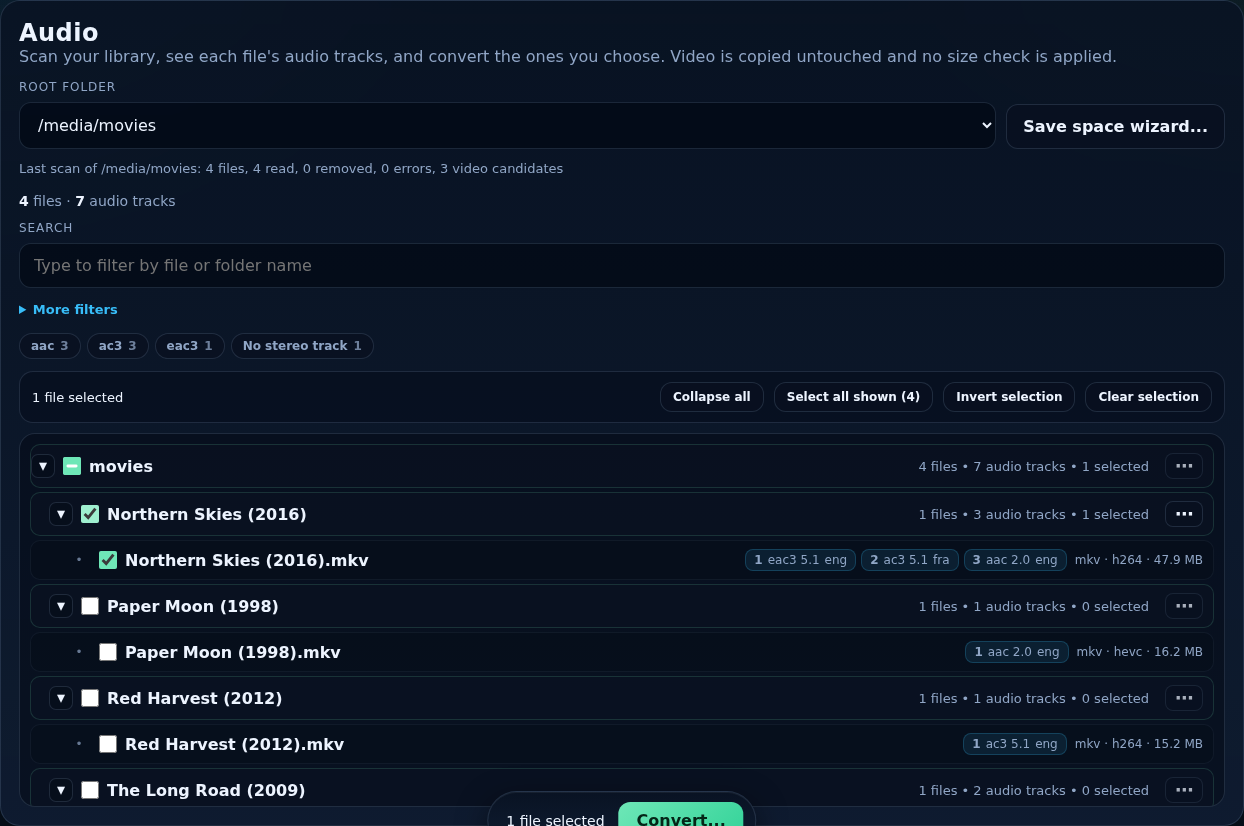
Scanning is automatic. A root folder gets a full scan when you add it, then a scan of new and changed files on the interval in General. The tab shows each file with chips for its tracks (number, codec, channels, language). Conversion copies the video and subtitles unchanged and rebuilds the audio, then checks the result (duration, stream counts, codecs, channels) before it replaces the original. No size comparison is made: an audio conversion can make a file larger, and that is allowed.
The page
- Root folder
- Which root folder the tree shows.
- Save space wizard…
- Finds the files where converting would free the most space. See the Save space wizard.
- Counts
- How many files and audio tracks the folder holds (after filters).
- Select all shown, Invert selection, Clear selection, Collapse all
- Selection helpers. They apply to the files the filters currently show.
- Convert…
- Opens the conversion dialog for the ticked files (Add to Queue inside it). While an audio queue runs, the same button adds to it.
Tick folders as on the Video tab: a folder ticks everything under it, partly ticked folders show a dash.
Filters
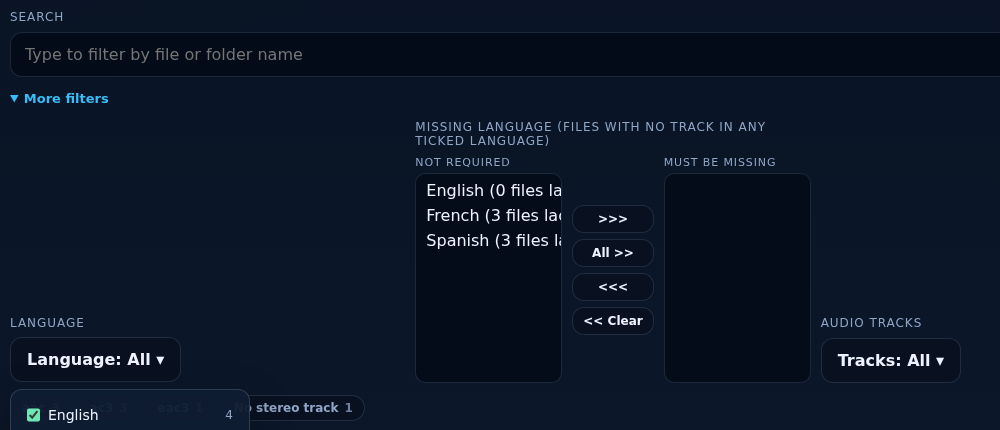
- Search
- Type part of a file or folder name.
- Language
- A list with checkboxes: tick any number and a file shows when it has a track in any of them. Under More filters.
- Missing language
- Shows files that have no track in any of the ticked languages (for example, files with no English).
- Audio tracks
- Filter by the number of audio tracks a file has.
Active filters are shown as chips above the tree so you can see, and remove, what is narrowing the list.
Languages
Languages are read from each track's tag. Alternative codes count as the same language (eng, en and enu are all English). A file whose only audio track has no language label, or is tagged und, is treated as the Default Audio Language from Settings → Audio so that language and name selections still match it. Files with several unlabelled tracks are not guessed. In the Convert dialog you can also choose what unlabelled tracks count as, and optionally write that language into the converted file's untagged tracks (it never replaces a tag that is already there).
Converting: Basic
Tick files, press Convert…, keep Basic selected:
- Codec and bitrate: “Convert audio in N files to codec at bitrate kbps”. Bitrates run from 64 to 640 kbps. Codecs your ffmpeg cannot encode are shown as unavailable (Not seeing the codec you want? explains why).
- Languages: tick the languages to convert; every matching track is converted and the others are kept as they are. Leave all unticked to convert every track.
- Keep a backup of each original file: a full copy, so it uses as much extra disk space as the files themselves. See Backups.
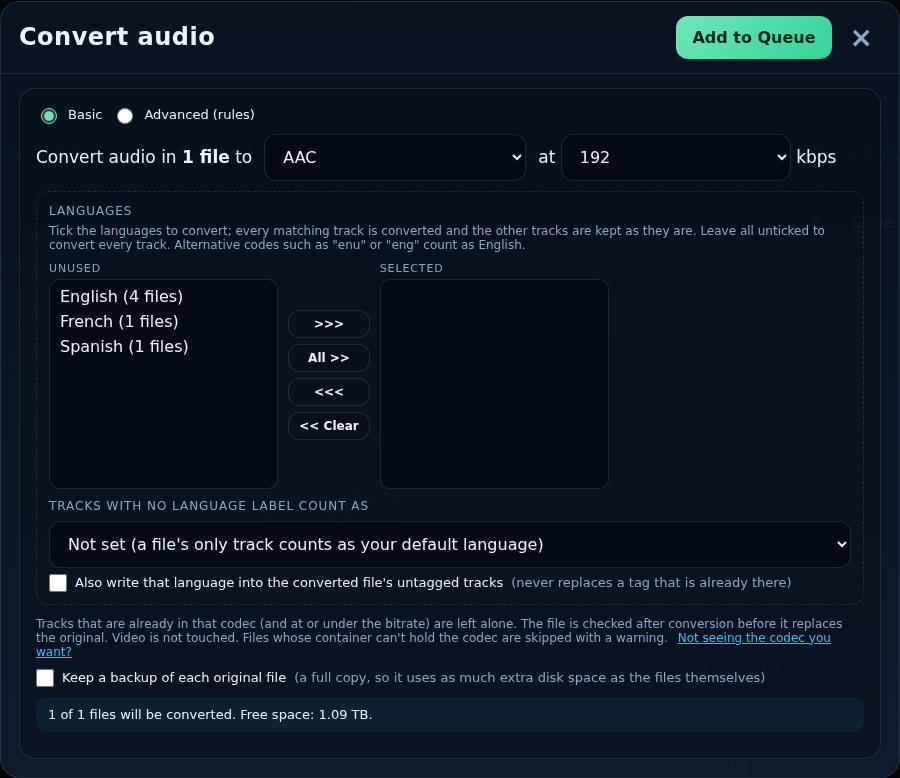
Tracks that are already in the chosen codec (and at or under the bitrate) are left alone. Files whose container cannot hold the codec are skipped with a warning (or converted to MKV, see Advanced).
Converting: Advanced (rules)
Choose Advanced (rules) for full control. The original is replaced in place.
Presets
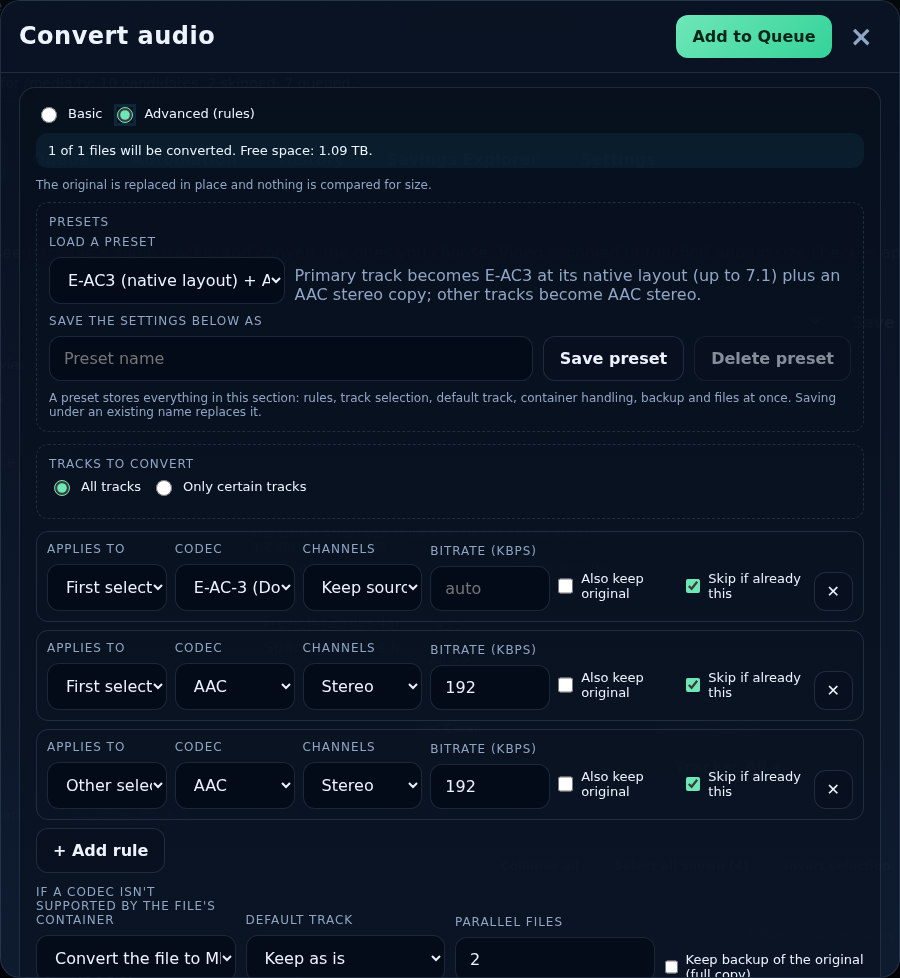
Load a built-in preset (conversion rules only) or your own. To save your own: set everything up, type a name, press Save preset. A preset stores all advanced settings (rules, track selection, default track, container handling, backup and files at once); saving under an existing name replaces it. Presets saved here can also be used by conversion profiles.
| Built-in preset | What it does |
|---|---|
| E-AC3 (native layout) + AAC stereo | Primary track becomes E-AC-3 at its native layout (up to 7.1) plus an AAC stereo track. |
| Add AAC stereo track (keep originals) | Keeps every original track and adds an AAC stereo version of each. |
| Everything to AAC stereo | Converts every track to AAC stereo. |
| Everything to Opus | Converts every track to Opus at its native layout. |
| AC-3 5.1 (older receivers) | Converts every track to AC-3, up to 5.1 at 640 kbps. |
| Lossless to FLAC | Converts every track to FLAC. |
Tracks to convert
All tracks (the default) or Only certain tracks, chosen by any of these:
- Languages
- A list of languages, as above.
- Track numbers
- Numbers and ranges:
1,3or2-4. - Name patterns
- One per line, matched against the track's title.
%stands for any characters (including none) and_for exactly one; matching ignores case.%English%matches any track with “English” in its title,%commentary%every commentary track,DTS%every title starting with DTS,Track _“Track 1”… “Track 9”. - Match
- Any criterion converts a track that matches at least one of the selectors you filled in; All criteria requires every one.
- Other tracks
- Tracks that were not selected are either kept as they are or removed.
Rules
Each rule produces an output track from the selected tracks. Add more with + Add rule.
- Applies to
- All selected tracks, the first selected track, or the other selected tracks.
- Codec
- AAC, AC-3, E-AC-3, Opus, MP3, Vorbis, FLAC, ALAC, PCM, MP2, DTS, TrueHD or WavPack, as far as your ffmpeg can encode them.
- Channels
- Keep source, mono, stereo, 5.1 or 7.1.
- Bitrate (kbps)
- Blank means automatic.
- Also keep original
- Keep the source track as well as the converted one.
- Skip if already this
- Leave a track alone when it already matches the rule.
Container, default track and parallelism
- If a codec isn't supported by the file's container
- Convert the file to MKV or Skip those files. (For example Opus does not fit in
.avi.) - Default track
- Keep as is, or Make first output default.
- Parallel files
- How many files are converted at once (1–8).
- Keep backup of the original
- A full copy of each original.
- Preview on a sample file
- Shows exactly what the rules would do to one file (every output track) before you queue anything.
A track that a codec cannot carry (for example 7.1 TrueHD to E-AC-3, which has at most 5.1) can keep its original too: see Settings → Audio.
Backups
Backups are off by default. When on, the original is kept next to the file as name.ext.orig for the retention period in Settings → Audio (30 days by default). The Audio tab lists backups with Restore original and Delete backup, and a Delete expired backups button. Expired backups can also be deleted automatically.
Priority and safety
- Audio conversion runs at low CPU and disk priority and is limited to two threads per process by default, so the page and your other services stay responsive. Both are in Settings → Audio.
- Free disk space is checked before each file. A failed run leaves the original untouched and is retried.
- After a crash or restart, leftover temporary files are removed and an interrupted replace is completed or rolled back.