Integrations settings
Connects Sonarr (for your TV folders) and Radarr (for Movies folders). Everything is optional: with an app switched off or unreachable the tool behaves exactly as it does without it, and a conversion never waits on them.
How the integration works
- Smart Transcode tells them about conversions. When a file is replaced, Sonarr or Radarr is asked to rescan it so they know the new size and codec. Radarr is told about each movie after a short wait; Sonarr can only rescan a whole series, so a run of conversions in one series becomes one rescan.
- They tell Smart Transcode about files (webhooks). New, upgraded, renamed and deleted files are reported so the scan finds them at once instead of at the next interval.
- It finds the series or movie from the path. Each file's series, season, episode, quality, quality profile, monitored state and tags are shown in the Queue and History details and in the Video tab's Monitored and Tag filters.
- It protects files in use. A file is skipped while Sonarr or Radarr is downloading or importing the same episode or movie, and a converted file never overwrites a file that was replaced during the conversion (the converter notes the file's size and modified time when it starts and checks again before replacing it).
The API keys stay on the server: the page only learns that a key is set.
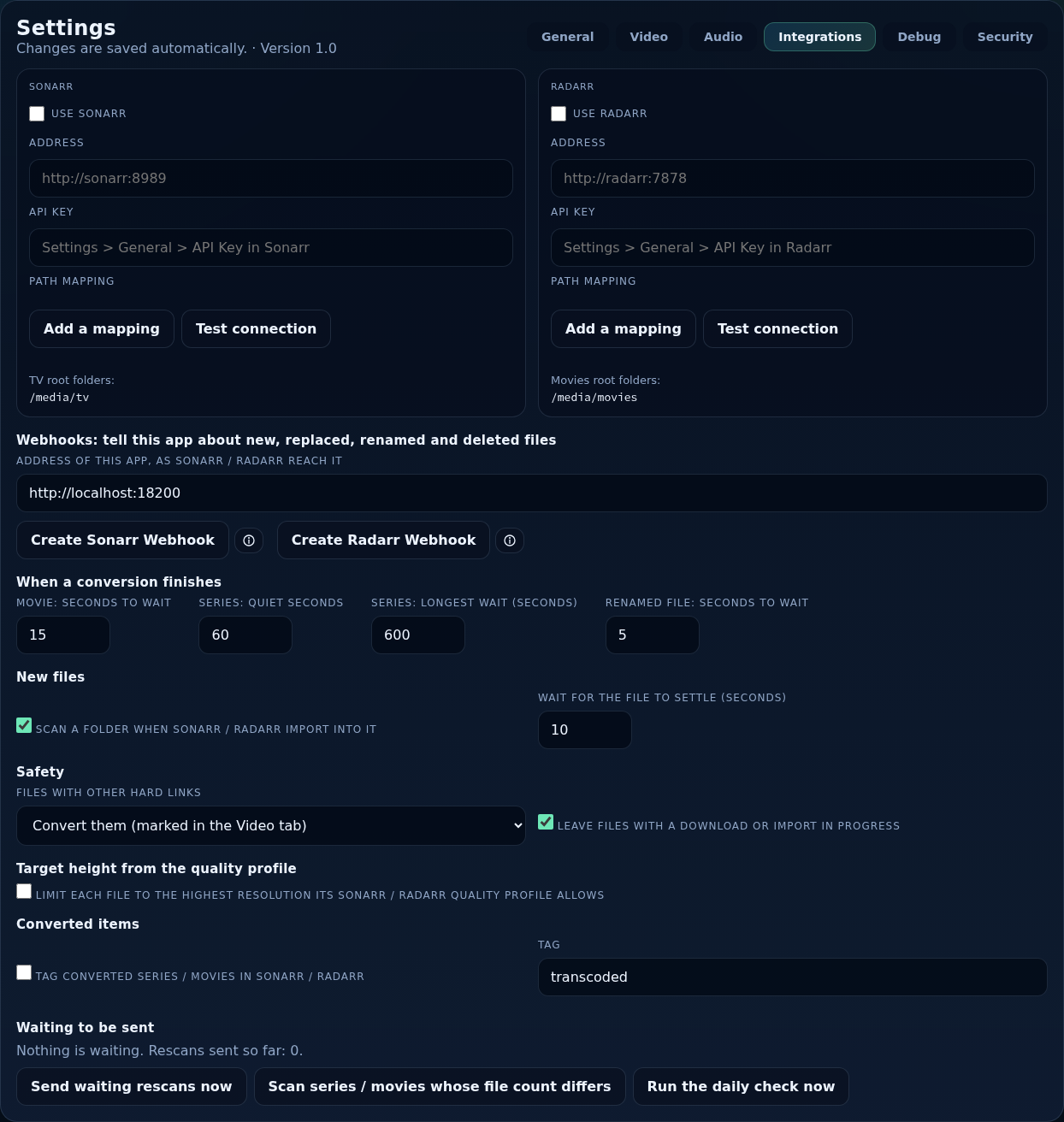
Sonarr and Radarr connections
Each app has its own card.
- Use Sonarr / Use Radarr
- Switches the integration for that app on or off.
- Address
- Where the app listens, for example
http://sonarr:8989orhttp://radarr:7878. In Docker use a name the container can resolve (a shared network), notlocalhost. - API key
- From the app's Settings → General → API Key. Once saved it shows “saved: leave empty to keep it”.
- Path mapping
- Only needed when the app sees your media under a different path than Smart Transcode (for example a Docker volume: their
/data/tvis this app's/mnt/media/tv). Enter the app's path and this app's path; add more rows if needed. Mounting the media at the same path in every container needs no mapping. - Test connection
- Checks the address and key, and a sample of the app's folders against your path mappings.
- Add a mapping
- Adds a row to the path mappings.
Which of your root folders belong to the app is decided by the folder type (TV for Sonarr, Movies for Radarr); see General.
Webhooks
So that Sonarr and Radarr tell Smart Transcode about new files.
- Address of this app, as Sonarr / Radarr reach it
- Change it when they cannot use the address in your browser (Docker, another host name): it must be reachable from their container or host, for example
http://smart-transcode:8080. Notlocalhost. - Create Sonarr Webhook / Create Radarr Webhook
- Creates (or updates) the Webhook connection in the app for you, method POST, with the right events ticked. The ⓘ button shows the address (it contains a secret, which is hidden), the manual steps (Settings → Connect → Webhook) and the events to tick, when the last webhook arrived, and Make a new secret. Press Create again afterwards to update the existing connection.
Without webhooks everything still works through the regular scans.
When a conversion finishes
How soon Sonarr and Radarr are told. These are seconds:
- Movie: seconds to wait
- Radarr is told this long after a movie finishes (default 15).
- Series: quiet seconds
- Sonarr is told once no file of the series finished for this long (default 60).
- Series: longest wait
- But no later than this after the first file, however many follow (default 10 minutes).
- Renamed file: seconds to wait
- When a conversion changes the extension (
.mp4to.mkv) they would show the file as missing, so they are told sooner (default 5).
New files
- Scan a folder when Sonarr / Radarr import into it
- On a webhook, only new and changed files are read. With Automation watching the folder, what qualifies is converted right away.
- Wait for the file to settle (seconds)
- A download client may still be moving the file. The scan waits until it has stopped changing.
Safety
- Files with other hard links
- A hard-linked file is usually a torrent that is still seeding. Converting it writes a new file, so the original stays on disk and nothing is saved while it seeds. Convert them (marked hard-linked on the Video tab) or Skip them.
- Leave files with a download or import in progress
- Checked in Sonarr / Radarr when a file is about to be converted. Skipped files are offered again later.
Target height from the quality profile
Limit each file to the highest resolution its Sonarr / Radarr quality profile allows (off by default; you are asked to confirm, because scaling down cannot be undone). Taller files are scaled to that height; shorter ones are never scaled up. The limit under Video → Downscaling still applies on top. The resolved height is shown on each queued file.
Converted items
- Tag converted series / movies
- Adds a tag to a series or movie in Sonarr / Radarr after its first conversion, so you can keep converted items out of upgrade searches. It changes your Sonarr / Radarr configuration, so it is off until you switch it on.
- Tag
- The tag's name (default
transcoded).
Checking against Sonarr / Radarr
A status area at the bottom shows what is waiting to be sent, and buttons to scan series / movies whose file count differs (folders where the app counts a different number of files than the library holds) and to run the daily check now (it also runs once a day).