
Queue
The Queue tab shows everything that is waiting and running, for video and for audio, in one list. Starting a conversion takes you here.
Summary and controls
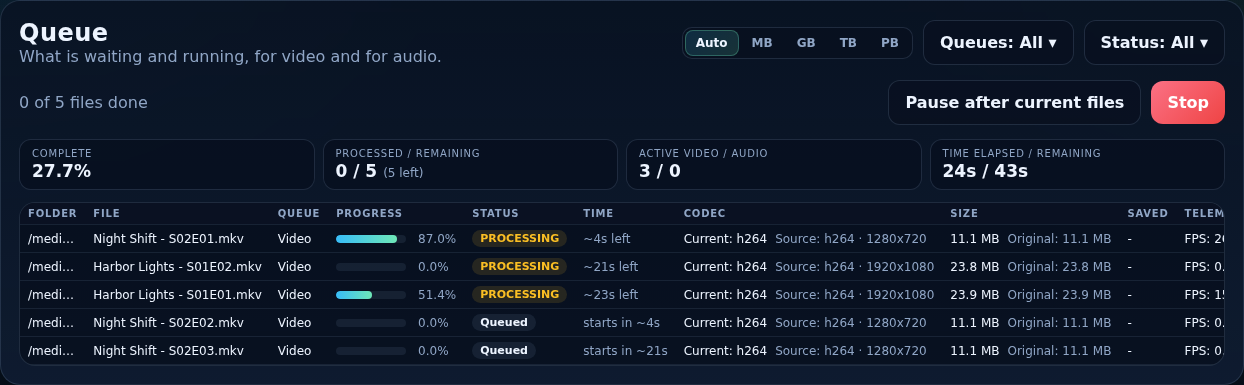
Above the list, a summary appears while something is queued: percent complete, files processed and remaining, how many video and audio files are active, and the time elapsed and the estimated time remaining. Each running queue has its own summary and buttons.
- Pause after current files
- The files converting now finish; the rest wait. The status shows “Pausing…”, then “Paused”. Press Resume to carry on. Files you add while paused wait too, and a paused queue stays paused across a restart. Automation's files are paused with it.
- Stop
- Stops the queue: conversions that are running are stopped and the files still waiting are not started. It also works while paused. A file that is stopped part-way keeps its original untouched.
The list
| Column | Shows |
|---|---|
| (info button) | More information: the details of the file in a pop-up (series or movie, season and episode, quality and quality profile, tags and the target height when Sonarr / Radarr are connected; the encoder and settings used). |
| Folder / File | Where the file is and its name. |
| Queue | Video or Audio. |
| Progress | A bar with the percentage. |
| Status | Queued, Converting, Success, Failed, Stopped, or a skipped state (larger, in use, hard-linked, file changed…). |
| Time | Estimated: time left for files converting, when waiting files will start, how long finished files took. The estimates use the speed of the files already finished in this queue, else speeds remembered from earlier queues. |
| Codec | The codec change (for example h264 → hevc). |
| Size / Saved | Original size and the space saved. |
| Telemetry | Live speed and bitrate while a file converts. |
| Message | What happened, or why a file was skipped. |
The list is ordered the way things happen: finished files first (by finish time), then the files converting (by time left), then the waiting files by when they are expected to start. Video and audio files interleave as they would actually run. While a queue runs, the Video and Audio tabs show Add to queue so you can add more files. They join the end, and the video settings (target codec, QP, GPU on/off) are read as each file starts.
Filters
- Queues
- Choose whether Video, Audio or both are shown, with how many files are still waiting or running in each. Each ticked queue has its own summary and buttons.
- Status
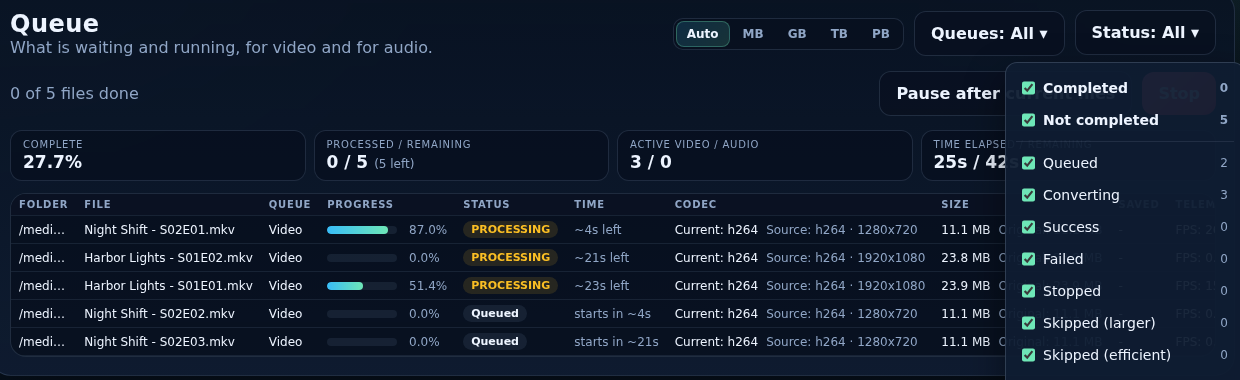
- Choose which statuses to show. It lists the statuses with a count for each; tick any number. Unticking one while everything shows hides just that one. Select all shows everything again (also statuses that turn up later), and Clear unticks everything so you can tick the few to look at. The button names what is shown (for example Status: Success, Failed). Each list remembers its choice in your browser.
When a queue finishes
A queue that completes is cleared from the Queue tab, with a one-line summary, and its results stay in History. If the server restarts while a queue is running, it is resumed afterwards (this can be turned off in Settings → Video).
