
Save space wizard
Audio can be a large part of a file, especially lossless and multi-channel tracks. The wizard (on the Audio tab) answers “what do I want my audio to look like?” and then lists exactly the files where meeting that would free space.
Open it with Save space wizard…. It searches the folders the Audio tab is showing and changes nothing until you confirm at the end. It has three steps.
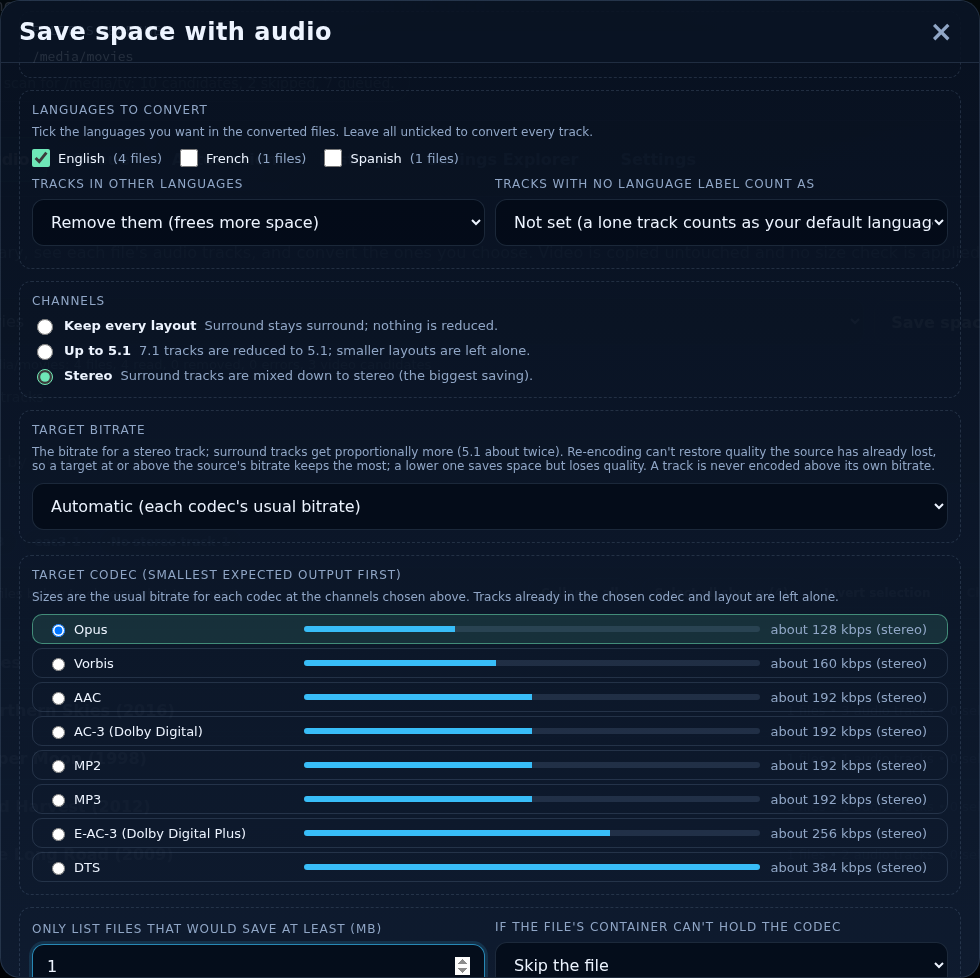
1. Requirements
Say what you want to keep.
- Languages to convert
- Tick the languages you want in the converted files (with how many files have each). Leave all unticked to convert every track.
- Tracks in other languages
- Keep as they are, or Remove them (frees more space). Available once you have ticked a language.
- Tracks with no language label count as
- What to assume for untagged tracks. By default a lone track counts as your default audio language.
- Channels
- Keep every layout (nothing is reduced), Up to 5.1 (7.1 becomes 5.1, smaller layouts are left alone) or Stereo (surround is mixed down; the biggest saving).
- Target bitrate
- Automatic (each codec's usual bitrate) or a stereo bitrate from 96 to 320 kbps; surround tracks get proportionally more. Re-encoding cannot restore quality the source has already lost, so a target at or above the source's bitrate keeps the most quality and a lower one saves space but loses some. A track is never converted to something larger.
- Target codec
- Listed with the smallest expected output first and the usual bitrate of each at the channels you chose. Tracks already in the chosen codec and layout are left alone.
- Only list files that would save at least (MB)
- Hides files where the gain is not worth it (25 MB by default).
- If the file's container can't hold the codec
- Skip the file, or convert it to MKV.
- Keep a backup of each original
- A full copy (extra disk space until it expires).
- Codecs to leave alone
- Tracks in the ticked codecs are copied unchanged, and a file is only listed if it has other tracks to convert. Lossless and object-based formats (TrueHD, FLAC, DTS-HD MA and so on) are ticked the first time, because converting them to a lossy codec cannot be undone.
Press Find files. Your answers are remembered in your browser for next time.
2. Candidates
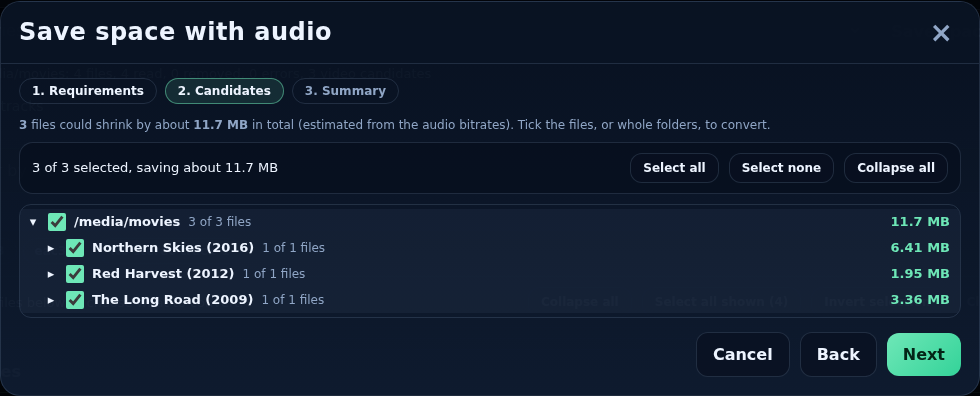
The wizard looks through the scanned files and lists those that would shrink, as a folder tree, with the total estimated saving (estimated from the audio bitrates). For each file you see its tracks, the bitrate before and after, and whether it becomes .mkv. Tick any file or folder at any level; Select all, Select none and Collapse all help. Press Next.
3. Summary
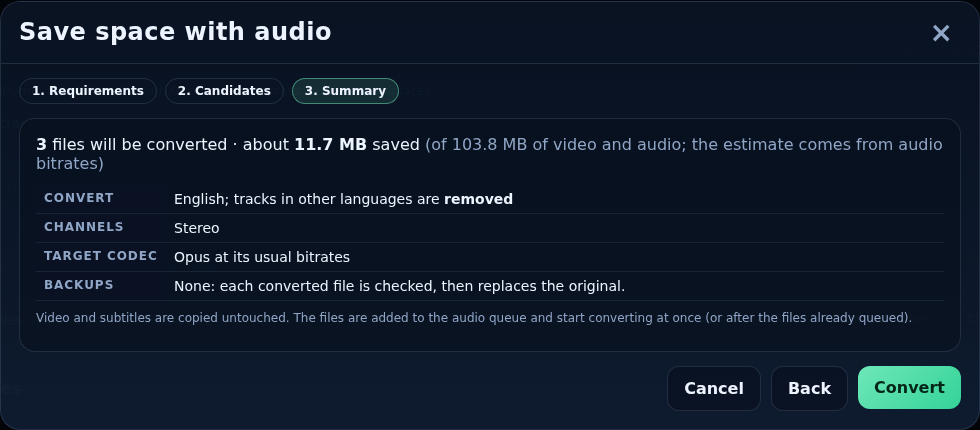
A last look at what will happen: how many files, the estimated space saved, and a recap of your choices. Video and subtitles are copied untouched. Confirm and the files are added to the audio queue and start converting at once (or after those already queued). Follow them on the Queue tab.
Estimates are estimates
The saving shown comes from the tracks' bitrates, not from a trial conversion. The History tab shows the real sizes afterwards.