Conversion profiles
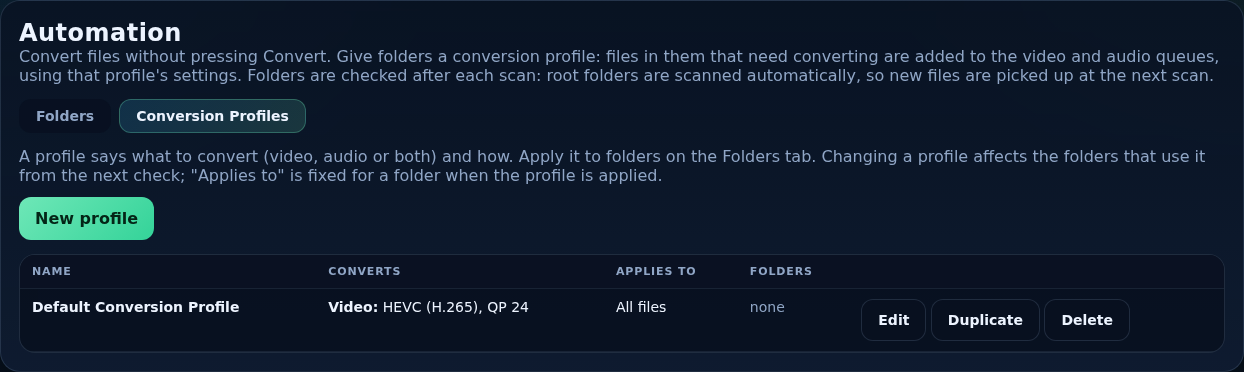
A conversion profile says what to convert (video, audio or both) and how. Automation applies a profile to folders; the settings in the profile are used for those folders' files. Find them on Automation → Conversion Profiles.
The profile list
The table shows each profile's Name, what it Converts (video, audio or both), Applies to and how many Folders use it. New profile creates one; each row has Edit and Delete. A profile cannot be deleted while folders use it. A Default Conversion Profile (HEVC, QP 24, original size, audio off) exists from the first start.
Create a profile
- Press New profile.
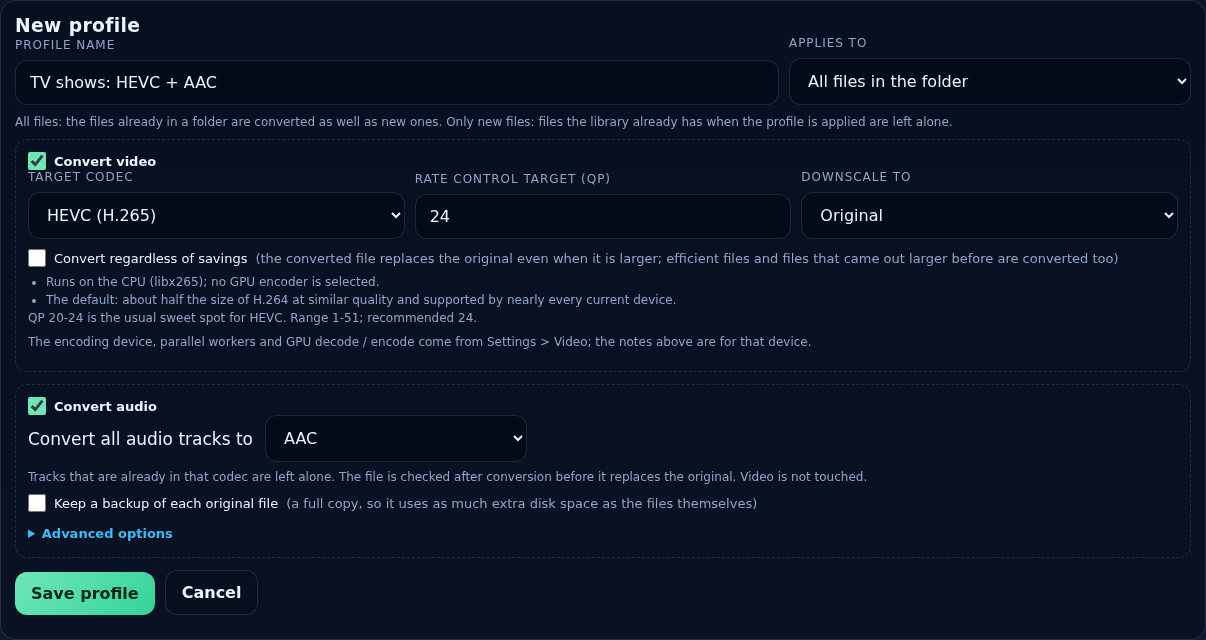
- Give it a name (up to 60 characters), such as TV shows: HEVC + AAC, and choose Applies to.
- Tick Convert video and/or Convert audio and fill in the sections below.
- Press Save. A message beside the button confirms it.
- Go to the Folders page, tick folders and apply the profile.
Name and scope
- Profile name
- Shown in the folder tree and the profile list.
- Applies to
- All files in the folder: everything that needs converting, now and later. Only new files: files the library already has when you apply the profile are left alone; files found from then on are converted. Fixed for a folder when you apply the profile.
Convert video
- Target codec
- HEVC by default; H.264, AV1 (and experimental H.266) where the device supports them. Notes underneath say what to know about the choice.
- Rate control target (QP)
- Quality target; lower is better quality and bigger files. A hint shows the range and recommended value for the codec.
- Downscale to
- Original, 480p, 720p, 1080p or 2160p. Taller files are scaled down.
- Files already at or below that height
- Shown when downscaling: convert them at their own size, or skip them.
- Convert regardless of savings
- The converted file replaces the original even when it is larger; efficient files and files that came out larger before are converted too.
The encoding device, parallel workers and GPU decode and encode come from Settings → Video; a profile does not repeat them.
Convert audio
- Convert all audio tracks to
- The simple choice: pick a target codec (every track is converted; tracks already in that codec are left alone).
- Keep a backup of each original file
- A full copy, using as much extra disk space as the files themselves, kept for the retention period in Settings → Audio.
- Advanced options
- Open this section for full control. While it is open, its settings are used instead of the simple choice. The original is replaced in place and nothing is compared for size.
Advanced options
- Preset
- Fills in the settings from a built-in preset or one you saved on the Audio tab. Changing settings here does not change the preset.
- Tracks to convert
- All tracks or Only certain tracks, chosen by Languages (tick them), Track numbers (
1,3or2-4) and Name patterns (one per line;%any characters,_one character, case-insensitive:%commentary%). Match chooses whether any or all of the criteria must match, and Other tracks keeps or removes the tracks that were not selected. - Rules
- Each rule makes an output track: Applies to (all selected tracks, first, or other), Codec, Channels (keep source, mono, stereo, 5.1, 7.1), Bitrate (blank = automatic), Also keep original and Skip if already this. Add and remove rules with the buttons.
- If a codec isn't supported by the file's container
- Convert the file to MKV, or skip it.
- Default track
- Keep as is, or make the first output track the default.
- Parallel files
- How many audio files are converted at once (1–8).
- Keep backup of the original
- As above, for the advanced mode.
These work exactly as in the Audio tab's Convert dialog: see Converting audio for language handling, wildcards and examples.
Examples
| Goal | Profile |
|---|---|
| Shrink old TV downloads, leave sound alone | Convert video: HEVC, QP 24. Audio off. Apply to your TV folder. |
| Only convert what arrives from now on | Applies to: Only new files. |
| HEVC video and a stereo AAC mix of every track | Video on; audio on; Advanced → preset Add AAC stereo track (keep originals). |
| Keep English only | Audio on; Advanced → Tracks to convert: Only certain tracks, language English; Other tracks: Remove. |