
Password management
How to change your own password, reset someone else's, and get back in if you are locked out. Background on users and permissions is on the Security page.
Change your own password

Available when you are logged in. Visitors on a trusted network have no account here and no password to change.
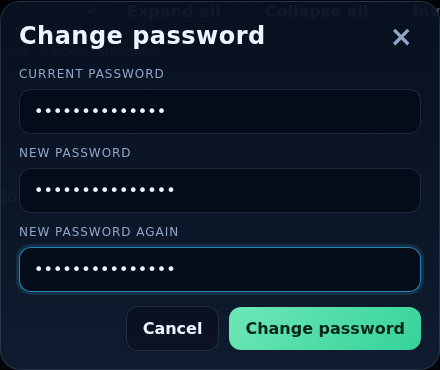
- When authentication is on, your name appears at the top of the page with Change password and Log out buttons. Click Change password.
- Enter your Current password, then the New password twice (at least 8 characters).
- Press Change password. Your other logins end; you stay signed in here.
Reset another user's password
Needs the Users and security permission.
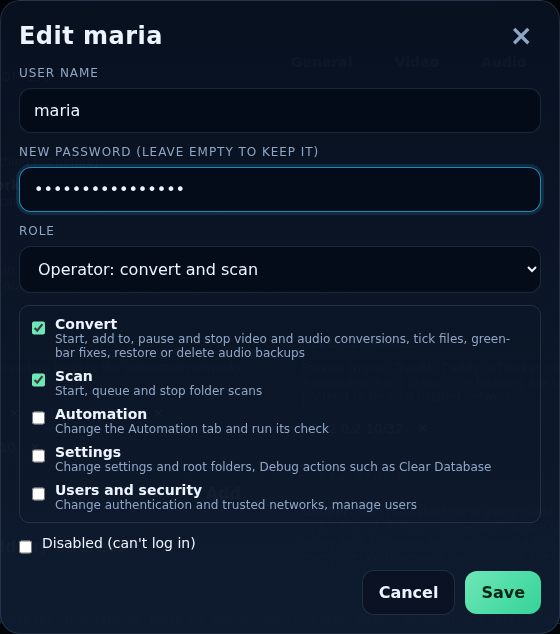
- Open Settings → Security.
- Click Edit on the user in the Users table.
- Type a new password in New password (leave empty to keep it). Tick or untick Disabled and change the role if needed.
- Press Save. The user's current logins end, and they sign in with the new password.
Tell the user the new password through a safe channel and ask them to change it with Change password. If a user is no longer wanted, Delete removes them (their logins end at once).
Locked out: reset from the server
If nobody can log in (a forgotten administrator password, a wrong trusted network), fix it on the server. The command-line tool smart-transcode-auth works on the database directly, so it also works when nobody can sign in. The running service picks changes up within seconds, with no restart. Changes are written to the log, marked [command line].
Reset a user's password
# Linux service
sudo smart-transcode-auth reset USER

# Docker
docker exec -it smart-transcode smart-transcode-auth reset USER

# Podman
podman exec -it smart-transcode smart-transcode-auth reset USER
It asks for the new password twice (not echoed). Add --enable to re-enable a disabled user, and --role ROLE (or --permissions LIST) to also change what they may do. For a lost administrator, reset admin --enable --role admin is a good start.
Reset the security settings
| Command | Does |
|---|---|
smart-transcode-auth status | Shows the mode, trusted networks and reverse proxies. |
smart-transcode-auth list | Lists users, their status, last login and permissions (--json for scripts). |
smart-transcode-auth disable | Switches authentication off. Users and settings are kept, so you can switch it back on in Security. |
smart-transcode-auth disable --purge | Removes authentication entirely: off, every user and login deleted, networks cleared. Asks you to type yes on a terminal (--yes skips that). |
smart-transcode-auth add USER --role ROLE | Adds a user (roles viewer, operator, manager, admin; or --permissions convert,scan,automation,settings,users). |
smart-transcode-auth delete USER | Deletes a user. The last administrator cannot be deleted while authentication is on. |
In Docker or Podman prefix each with docker exec -it smart-transcode or podman exec -it smart-transcode. On the Linux service, run with sudo: it reads /etc/smart-transcode.env for the data folder and works as the service user, so the database keeps the right owner. For scripts, passwords can be piped in: printf '%s\n' "$PW" | sudo smart-transcode-auth add alice --role operator --password-stdin (passwords are never taken as command-line arguments).
No shell? The auth-off file
Create an empty file named auth-off in the data folder: authentication is off while the file exists, and users and settings are kept. Delete the file to turn authentication back on.
| Platform | The data folder |
|---|---|
| Linux service | /var/lib/smart-transcode (or the --data-dir you chose): sudo touch /var/lib/smart-transcode/auth-off |
| Docker / Podman | The folder you mapped to /config on the host: touch ./config/auth-off |
The Security page also shows this path (under the users table) so you can copy it.