
Video settings
These settings control how video is converted. The Convert dialog on the Video tab and conversion profiles use the same options.
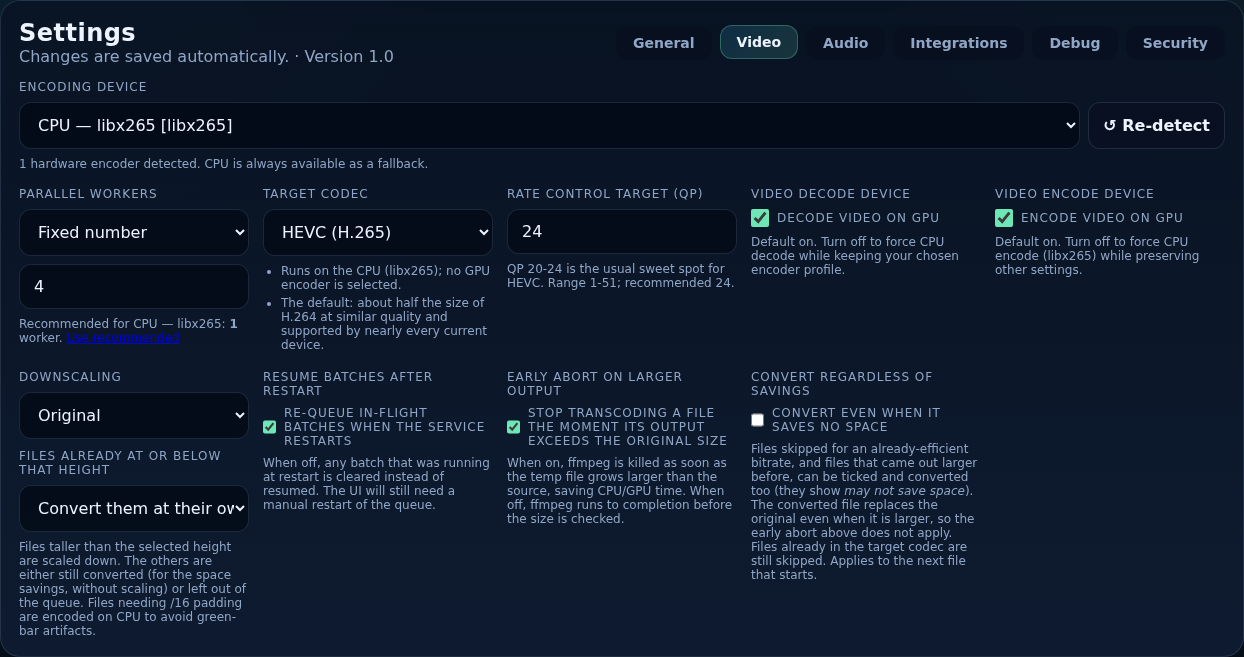
Settings
- Encoding Device
- The hardware used to encode: your NVIDIA, Intel or AMD GPU profile, or the CPU (libx265). The list is what was detected when the service started. Re-detect scans again (press it after fixing drivers or passing a GPU into a container). A GPU's encoder is tested on a tiny clip the first time it is needed, because a device can exist but fail to encode.
- Parallel Workers
- Fixed number (1–16): that many files convert at once; a hint recommends a number for your device. Automatic: the server starts with one file, adds another while the combined speed keeps rising, and now and then tries one more or one fewer, up to the maximum you set. Files already converting are never stopped. Can be changed while a queue runs: it applies to the next file that starts.
- Target Codec
- HEVC (H.265, default), H.264, AV1 and H.266 (experimental) where your device can encode them. Notes below the box explain what that choice means on this machine: H.264 is 8-bit only (10-bit and HDR sources become 8-bit and HDR looks washed out); AV1 and H.266 need players that support them.
- Rate Control Target (QP)
- The quality target. Lower is better quality and a bigger file. HEVC uses QP (recommended 24); H.264 and AV1 use a constant-quality number (CRF on the CPU, the encoder's equivalent on a GPU). The scales differ, so the box shows the codec's own wording, range and recommended value.
- Video Decode Device — Decode video on GPU
- On by default. Turn off to decode on the CPU while keeping your chosen encoder.
- Video Encode Device — Encode video on GPU
- On by default. Turn off to encode on the CPU (libx265) while keeping the other settings.
- Downscaling
- Original, 480p, 720p, 1080p or 2160p. Files taller than the choice are scaled down, keeping the shape of the picture; shorter files are never scaled up. Files already at or below that height: Convert them at their own size (still saves space) or Skip them. Scaling down cannot be undone.
- Resume Batches After Restart
- On by default: a queue that was running when the service restarted is queued again. Off: it is cleared and you start it again by hand.
- Early Abort on Larger Output
- On by default: ffmpeg is stopped as soon as the temporary file grows larger than the original, saving time. Off: ffmpeg runs to the end before the sizes are compared. It has no effect while Convert regardless of savings is on (the box says so).
- Convert Regardless of Savings
- Off by default. On: files skipped for an already-efficient bitrate, and files that came out larger before, can be ticked and converted too (they show may not save space), and the converted file replaces the original even if it is larger. Files already in the target codec are still skipped. Applies to the next file that starts.
How a video conversion is processed
- Scan. The file's codec, resolution and bitrate are read. It becomes a candidate when it is in an older codec and above the bitrate guide for its resolution (Converting video).
- Queue. You (or Automation) add it to the queue. The settings above are read when the file starts, not when it is queued.
- Check. Free disk space is checked. Files that need a size adjustment the GPU cannot do (frame sizes that are not a multiple of 16) are encoded on the CPU to avoid green bars at the bottom of the picture, and History records the reason.
- Encode. ffmpeg decodes and encodes on the device you chose (GPU first, CPU if you turned the GPU off or the file needs it), scaling down if asked. The first video stream is converted; audio, subtitles, attachments, chapters and metadata are copied unchanged. The output is written as a temporary file next to the original, and the result is an MKV file (a
.mp4becomes.mkv). - Guard. Early Abort stops the encode if the output outgrows the original. When it finishes, the converted file's tracks are counted (a file that lost any is discarded) and its size is compared with the original.
- Replace. If everything is fine the temporary file replaces the original. If the original changed or disappeared while converting (Sonarr imported an upgrade, say), the output is thrown away instead.
- Retry. A crash or failed check is retried, up to three attempts. After that the file is marked Failed and the original is left untouched.
- Record. The result goes in History (sizes, encoder, time, the ffmpeg command) and the savings totals. If Sonarr or Radarr are connected they are told to rescan the file.
After a crash or restart, leftover temporary files are removed on the next start.