
General settings
The General section holds your root folders, the folders Smart Transcode scans and converts, and how often they are rescanned.
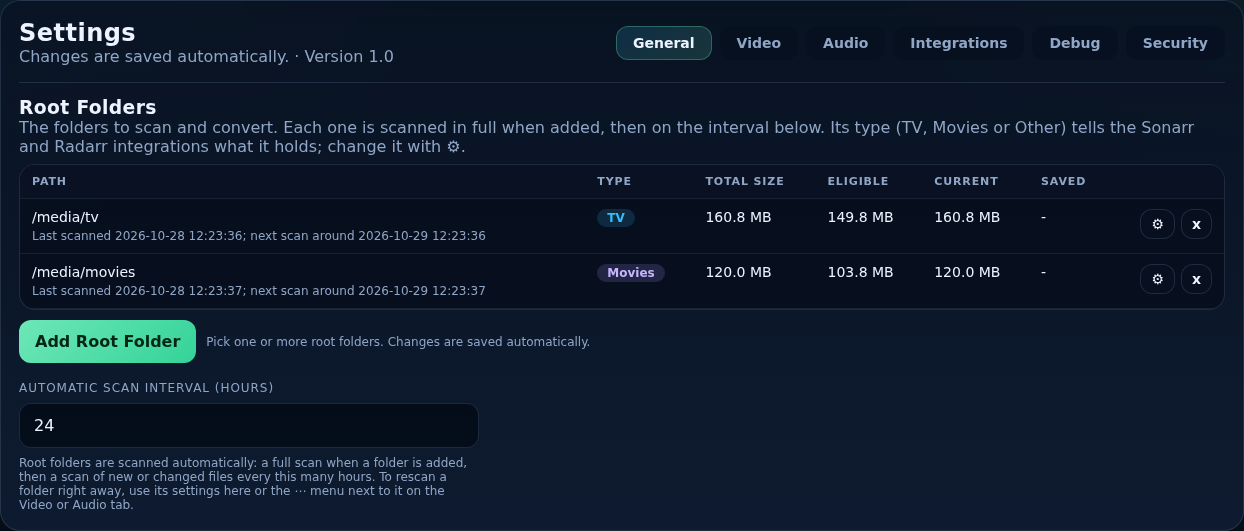
Root folders
A root folder is where to look. Everything else (scan results, history, which files are ticked or queued) is stored per file, not per folder, so adding, removing and re-adding a folder does not lose information.
| Column | Shows |
|---|---|
| Path | The folder. In a container it is the path inside the container. |
| Type | TV, Movies or Other. |
| Total Size | Size of everything scanned in it. |
| Eligible | How much of it is a candidate for conversion. |
| Current | Its size now. |
| Saved | The space saved by conversions so far. |
Add a root folder
Press Add Root Folder. A file browser opens: navigate (or type a path) to the folder, choose its Folder type and press Ok. A first guess for the type comes from the folder's name. You can add several. Each new folder gets a full scan straight away.
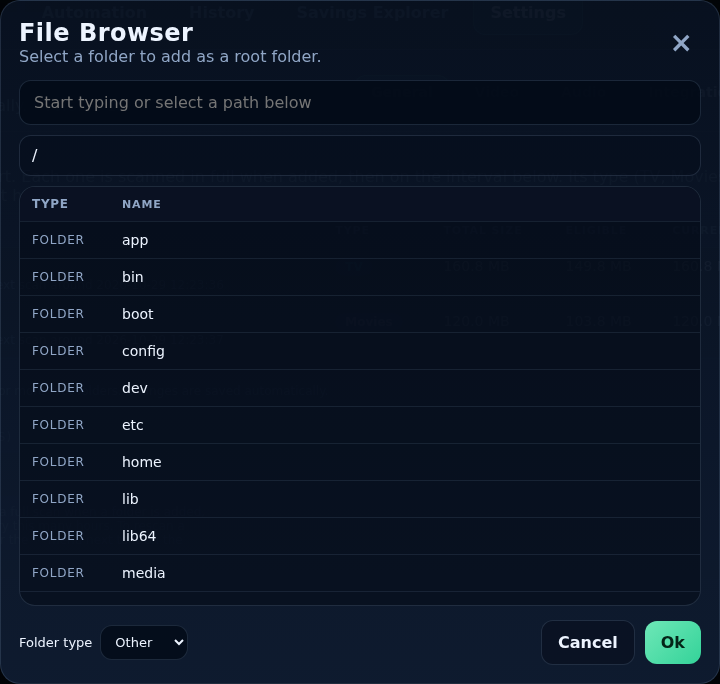
Folder type
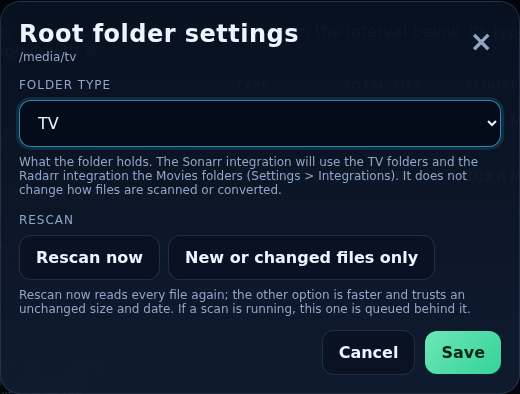
The type says what the folder holds. It tells the Sonarr integration to use the TV folders and the Radarr integration the Movies folders. It does not change how files are scanned or converted. Change it any time with the folder's ⚙ button.
Rescan
The ⚙ dialog also has two rescan buttons. Rescan now reads every file again. New or changed files only is faster and trusts an unchanged size and date. If a scan is running, the new one waits behind it.
Remove a root folder
The folder's x button opens a dialog. By default it deletes nothing: the folder stops being scanned and leaves the lists, and files on disk are never touched. Add the folder (or its parent) again and its files return with all their data.
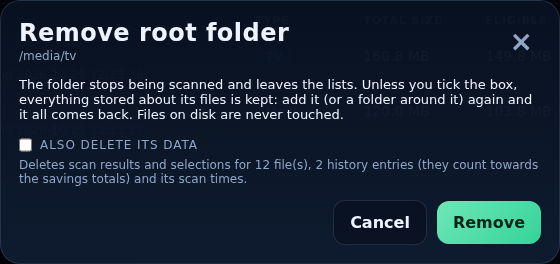
Tick Also delete its data to delete everything stored about the files in it: scan results, selections, video and audio history (this also reduces the savings totals) and the Automation folders inside it. The dialog tells you how many files and history entries that is. Notes:
- Removing a folder also stops its scans, so a folder removed while its first scan runs stays removed.
- It is refused while files from the folder are in a queue.
- A root folder inside another root folder cannot have its data deleted on its own (its files belong to the outer folder).
- Audio history entries whose backup file still exists are kept, so the backup is still deleted when it expires.
A root inside another root
Adds nothing, because its files are already part of the outer folder. It is marked Included in /parent; can be removed, the scan covers it once, and “All root folders” shows each file once. It can still be picked on its own in the folder drop-downs, which then shows just that part.
Files that disappear
A file that a completed scan no longer finds (deleted, or its disk not mounted) is hidden rather than forgotten. When it is found again, at the same path or renamed or moved inside the scanned folder (it is recognised by its fingerprint), it comes back with its history and selection.
Automatic Scan Interval (hours)
How often root folders are scanned automatically, from 1 to 720 hours (default 24). A full scan runs when a folder is added; after that, a scan of new or changed files runs every this many hours, counted from the folder's last completed scan. To scan a folder right away, use its ⚙ button here or the ⋯ menu next to it on the Video or Audio tab. If Automation watches the folder, files that need converting are queued after each scan.