
Savings Explorer
The Savings Explorer shows how much space your conversions have saved, for any folder of your library: the original size of the files, their current size, and the difference.
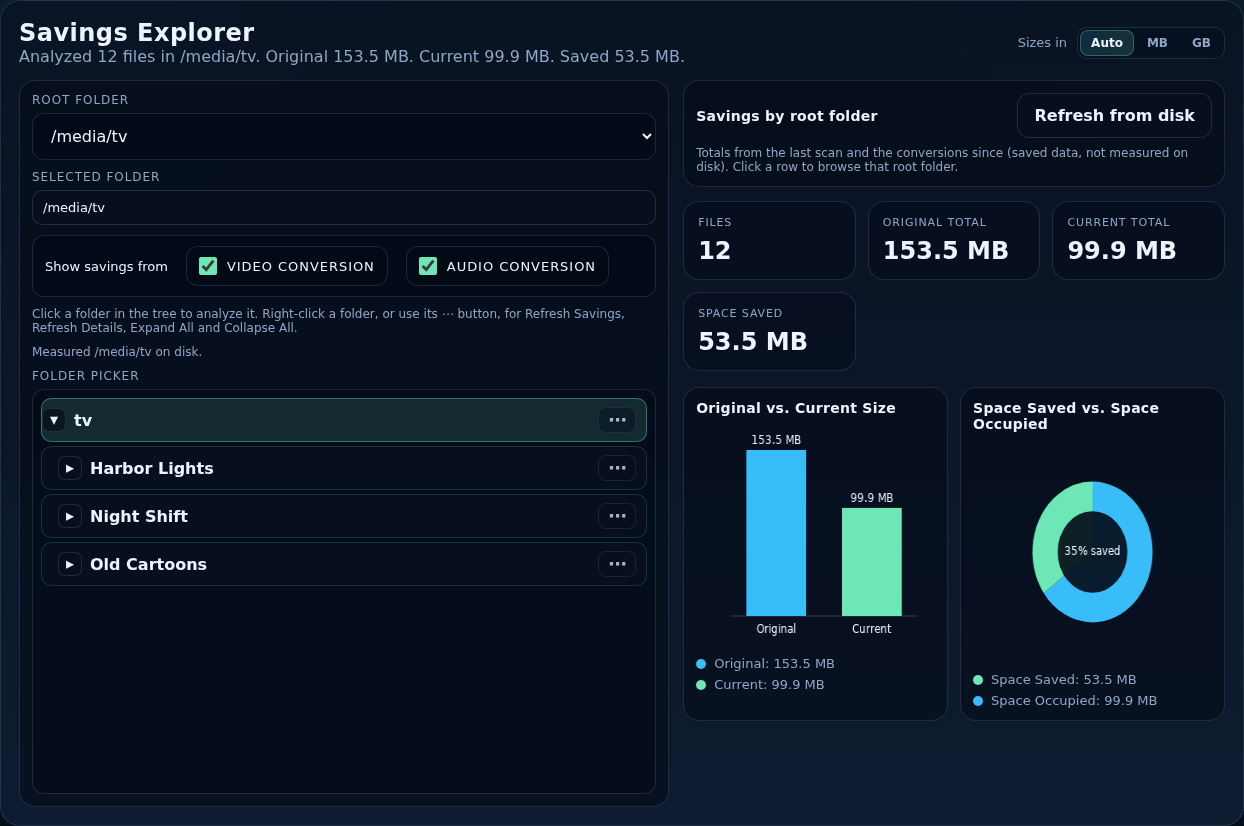
The page
The left pane chooses what to look at; the right pane shows the numbers.
- Root folder
- Appears when you have several root folders: choose the one whose tree to browse.
- Selected folder
- The folder being analysed. Click a folder in the tree to select it; the figures include everything inside it, recursively.
- Show savings from
- Video conversion and Audio conversion checkboxes. Audio conversions often make a file larger, so you can look at the savings of video alone, audio alone, or both (the total).
- Sizes in
- The unit switch for the whole page (KB … PB or automatic).
- Folder picker (tree)
- Expand and collapse folders. Right-click a folder, or use its ⋯ button, for a menu: Refresh Savings, Refresh Details, Expand All and Collapse All.
Tree details load from a saved cache so the page opens quickly; refresh a folder when you want the numbers measured again (it can be slow on a large library).
Savings by root folder
With nothing selected, a table lists each root folder with its Files, Original, Current and Saved totals. These come from saved totals; Refresh from disk measures the folders on disk instead (slow on a big library).
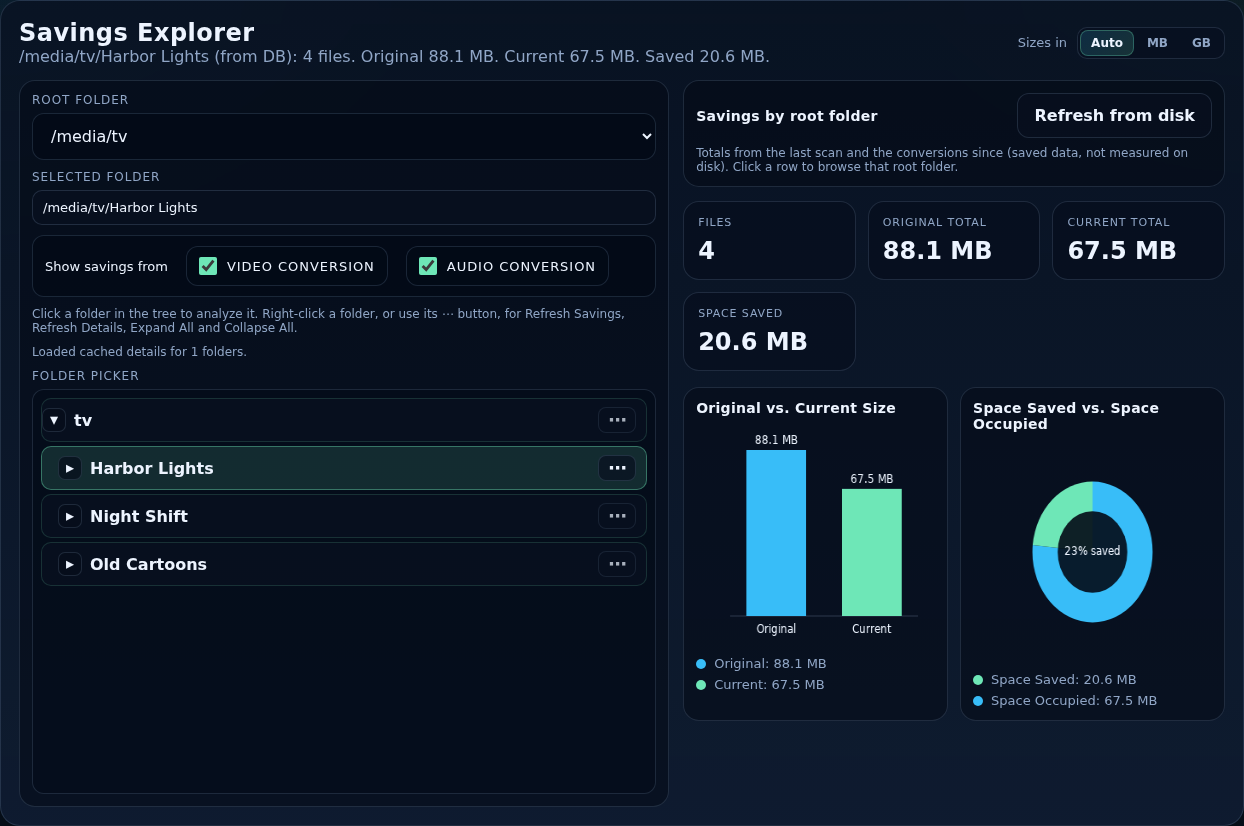
For the selected folder
- Four figures: Files, Original Total, Current Total and Space Saved.
- Original vs. Current Size: a bar chart.
- Space Saved vs. Space Occupied: a pie chart.
- A table of the folder's items with their Path, Original, Current and Saved.
“Original” is the size before Smart Transcode converted the file (from History); “Current” is the size now. Files that have not been converted count the same in both, so they add nothing to the saving.