
Audio settings
These settings control how audio conversion behaves. The tracks, codecs and rules you convert with are chosen on the Audio tab (or in a conversion profile); this page is for the behaviour around them.
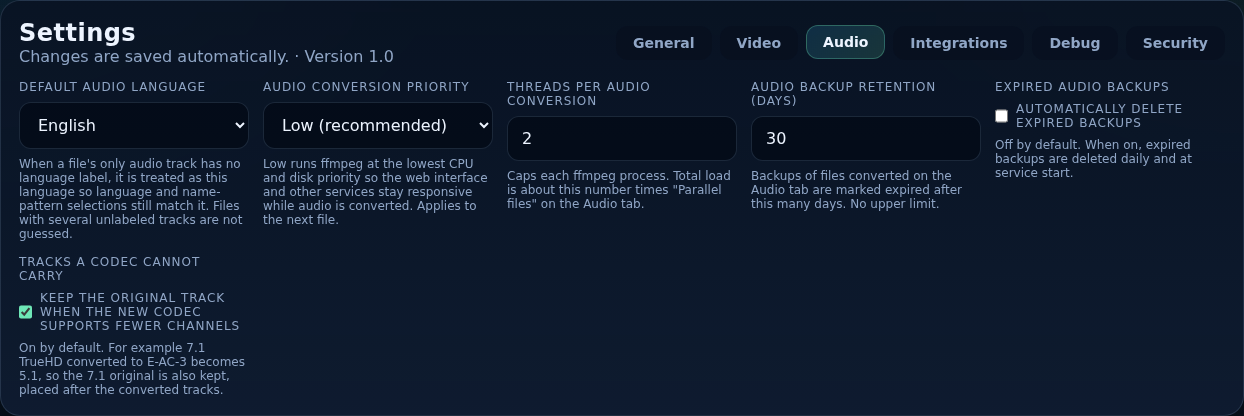
Settings
- Default Audio Language
- When a file's only audio track has no language label (or is tagged
und), it is treated as this language, so language and name-pattern selections still match it. English by default; about 74 languages are listed. Files with several unlabelled tracks are not guessed. - Audio Conversion Priority
- Low (recommended) runs ffmpeg at the lowest CPU and disk priority (
nice 15,ionicebest-effort 7) so the web page and your other services stay responsive while audio converts. Normal removes that handicap. Applies to the next file. - Threads per Audio Conversion
- Caps each ffmpeg process (1–64, default 2). Total load is about this number times Parallel files on the Audio tab.
- Audio Backup Retention (Days)
- Backups of files converted on the Audio tab are marked expired after this many days (default 30, no upper limit). Backups are off unless you tick the backup option when converting.
- Expired Audio Backups — Automatically delete expired backups
- Off by default. On: expired backups are deleted daily and at service start. Off: they stay until you delete them from the Audio tab.
- Tracks a Codec Cannot Carry — Keep the original track when the new codec supports fewer channels
- On by default. For example 7.1 TrueHD converted to E-AC-3 becomes 5.1, so the 7.1 original is also kept, placed after the converted tracks. Turn it off to keep only the converted track.
How an audio conversion is processed
- Scan. Each file's audio tracks (codec, channels, language, title) are read and saved, so the Audio tab can filter without reading the files again.
- Plan. Your choices (Basic codec and bitrate, or Advanced rules) are turned into a plan for each file: which tracks to convert, keep, add or remove. Preview on a sample file shows a plan before anything is queued. Files whose tracks already match are marked nothing to change and skipped.
- Check. Free disk space is checked. A file whose container cannot hold the codec is converted to MKV or skipped, as you chose.
- Convert. ffmpeg rebuilds the file into a temporary file next to the original. Video, subtitles and everything else are copied unchanged. It runs at the priority and thread limit above.
- Validate. The result must have the right duration, stream counts, codecs and channels. No size comparison is made: an audio conversion may make a file larger.
- Back up and replace. If you asked for a backup, the original is kept as
name.ext.orig. The converted file then replaces the original. - Retry. A failed attempt is retried with a fresh temporary file, up to three attempts. If all fail, the original is untouched.
- Record. History keeps a table of every source track and what became of it.
After a crash or restart, leftover .tmp_* files are removed and an interrupted replace is completed or rolled back. Audio events are written to the log with an AUDIO prefix.