
History
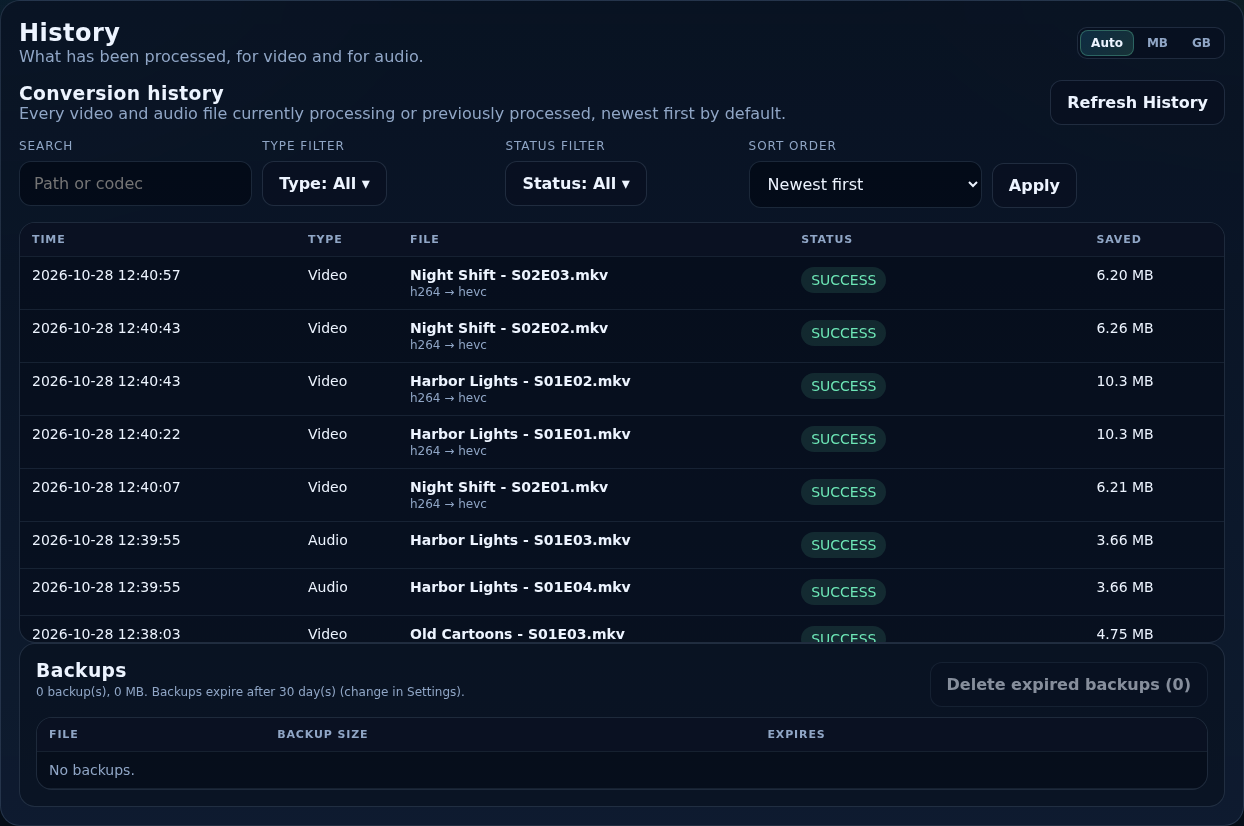
The History tab lists every video and audio file that has been processed (or is processing now). It is your record of what was converted, what it saved and why anything was skipped or failed.
The list
| Column | Shows |
|---|---|
| Time | When it was processed, in your browser's time zone. Hover to see the stored UTC time. |
| Type | Video or Audio. |
| File | The file name, with the codecs or audio tracks underneath. |
| Status | The outcome. Click it for the details. |
| Saved | The space saved (or added) by the conversion. |
Searching and filtering
- Search
- Type part of a path or a codec.
- Type filter
- Show video, audio or both. Each shows a count of records.
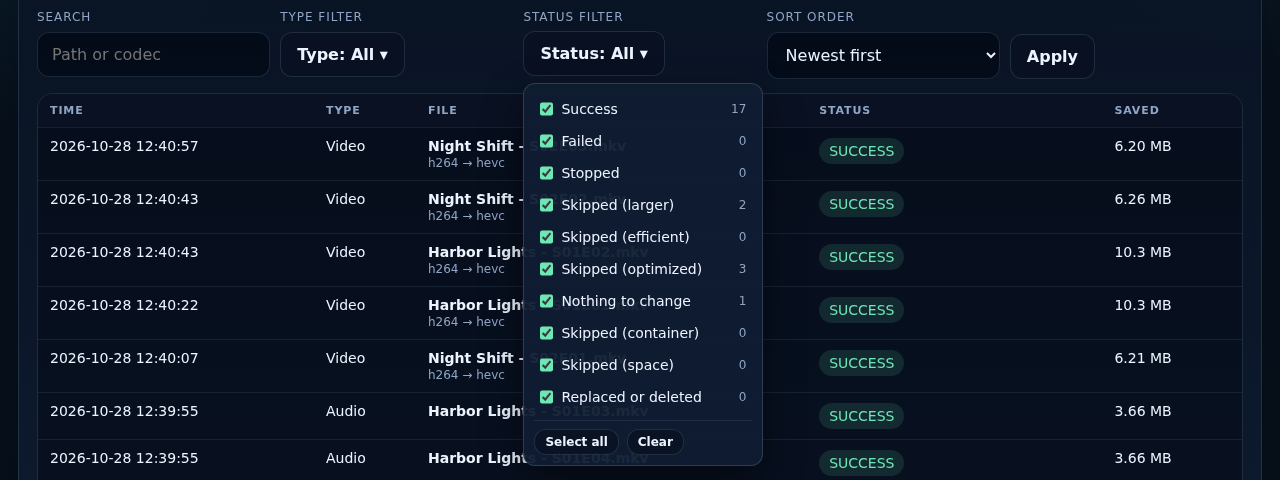
- Status filter
- Tick the statuses to show, with a count for each. Select all shows everything again; Clear unticks everything so you can tick just a few. The choice is remembered in your browser.
- Sort order
- Newest first (the default) or oldest first.
- Refresh History / Apply
- Reload the list with the current filters. The Size unit switch changes how sizes are shown.
Statuses
| Status | Meaning |
|---|---|
| Queued / Converting | Waiting in a queue, or being converted now. |
| Success | Converted; the new file replaced the original. |
| Failed | Every attempt failed (up to three). The original is untouched. |
| Stopped | You stopped it. |
| Skipped (larger) | The converted file came out larger than the original, so the original was kept. |
| Skipped (efficient) / (optimized) | The bitrate is already below the guide for its resolution, or the codec is already efficient. |
| Nothing to change | Audio: the file already matched the request. |
| Skipped (container) | Audio: the container cannot hold the codec, and you chose to skip. |
| Skipped (space) | Not enough free disk space for the conversion. |
| Skipped (hard-linked) | The file has other hard links and you chose to skip such files (Integrations). |
| Skipped (in use) | Sonarr or Radarr is downloading or importing the same episode or movie; it is offered again later. |
| Skipped (file changed) | The file changed while it converted (for example Sonarr imported an upgrade over it), so the output was thrown away. |
| Replaced or deleted | The file was replaced or removed after it was processed. |
The details screen
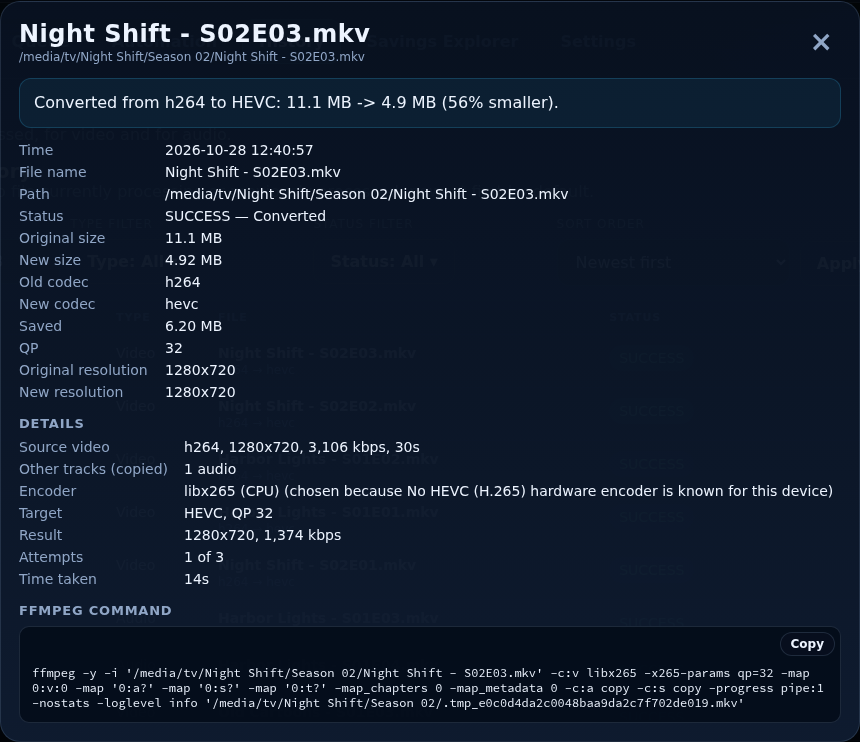
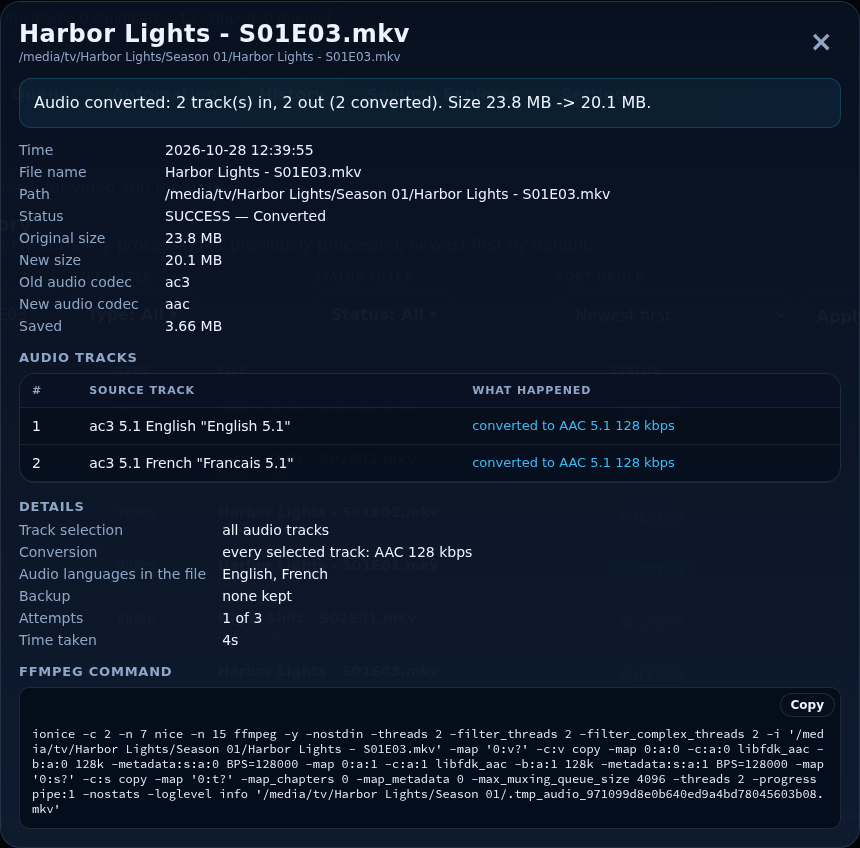
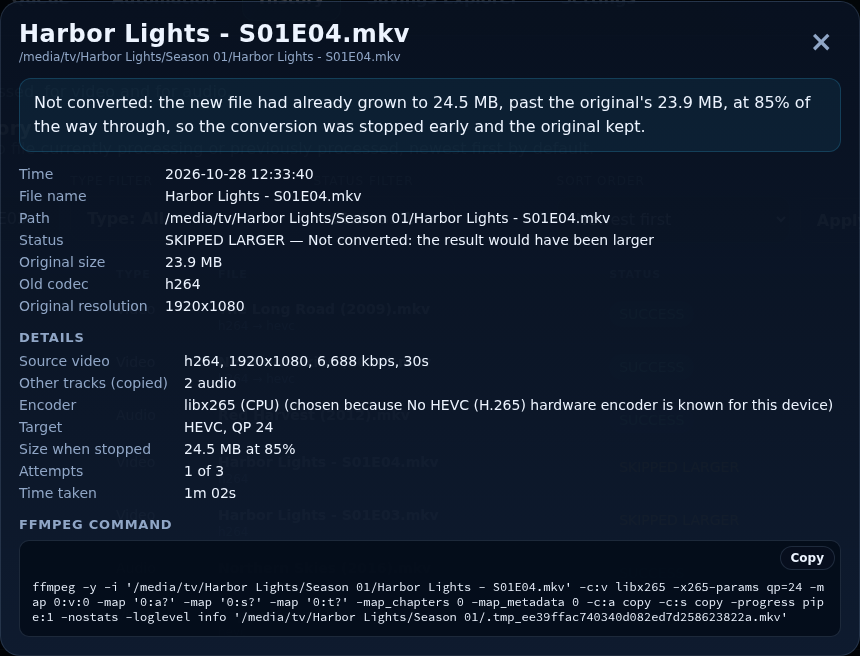
Click a status for a pop-up with the time, file name, path, status, original and new size, old and new codec, the amount saved, the ffmpeg command (with a Copy button) and a Details section that depends on what happened:
- Converted: sizes before and after, the encoder used (and why, for example CPU because the frame size is not a multiple of 16), the target codec and QP, the result's resolution and bitrate, attempts and time taken. For audio, a table of every source track and what became of it: kept, converted, added or removed.
- Larger when re-encoded: how big the converted file got, and how far through the conversion it was stopped.
- Already efficient / optimized: the bitrate and the threshold for that resolution, or the codec.
- Failed: each attempt with ffmpeg's exit code and its last messages.
- Audio, nothing matched the track selection: the selection used and the languages the file's audio is actually in.
- With Sonarr / Radarr connected: the series or movie, season and episode, quality, quality profile, monitored state and tags.
Entries recorded by older versions show only the fields they have. The Audio part of History also lists audio backups.
History is kept in the database, so it survives restarts. Clear Database in Settings → Debug deletes it.
Where the savings go
The totals feed the Savings Explorer and the “Saved” column of each root folder in Settings → General.