
Security settings
Authentication is off by default: anyone who can reach the page can do everything. This section turns it on, defines who may log in and what they may do, and tells Smart Transcode which networks and proxies to trust. You need the Users and security permission to change it.
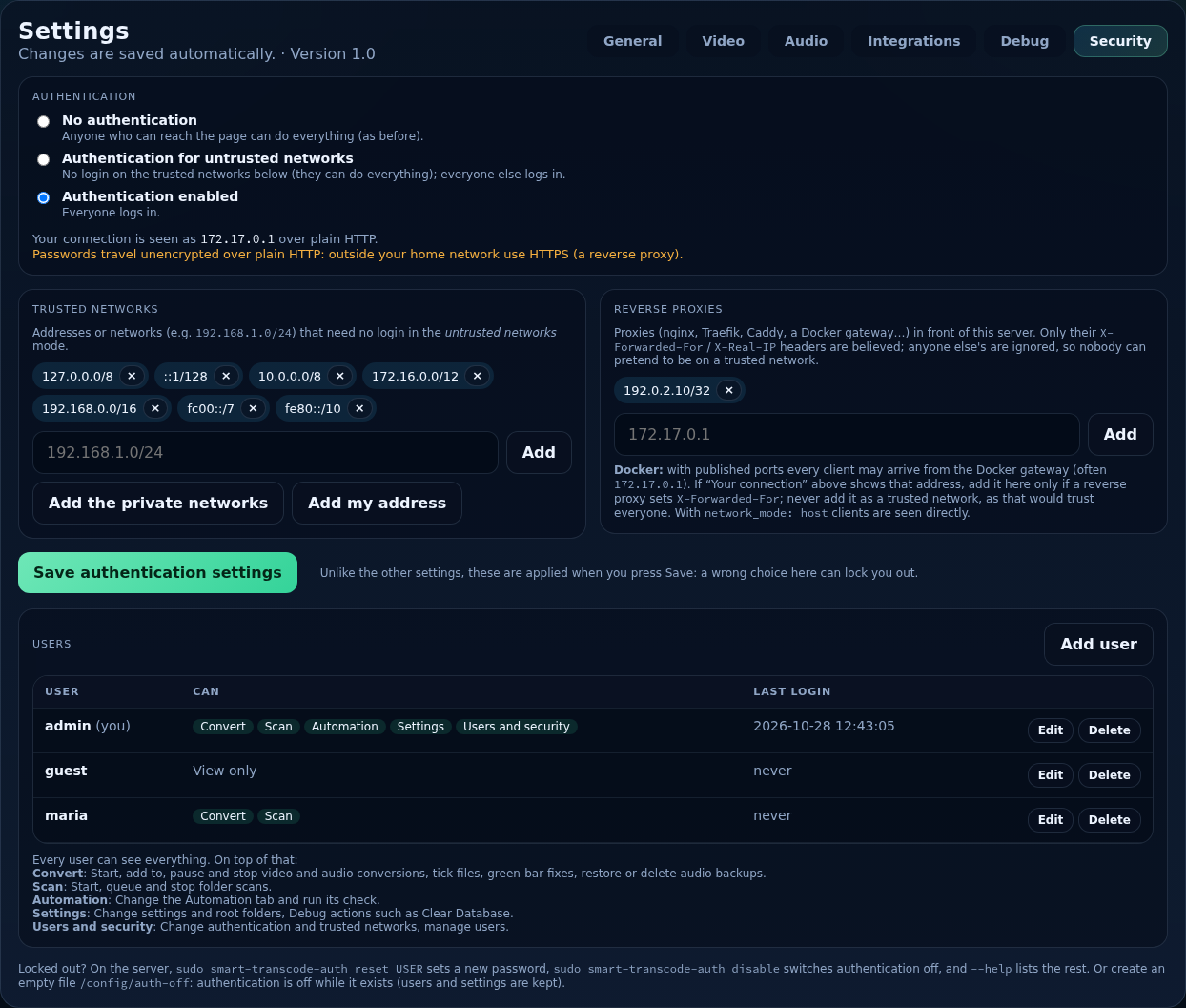
Unlike other settings, these are saved with a button
Changes to the mode, trusted networks and reverse proxies apply when you press Save authentication settings, because a wrong choice can lock you out. Users are saved from their own dialog.
Authentication mode
- No authentication
- Anyone who can reach the page can do everything.
- Authentication for untrusted networks
- Clients on the trusted networks below need no login and can do everything; everyone else must log in.
- Authentication enabled
- Everyone logs in.
Switching authentication on needs at least one active user with the Users and security permission; the last such user cannot be deleted, disabled or lose that permission. Below the options, Your connection shows how this browser is seen (its address, and whether it counts as trusted).
Users
Add user opens a dialog. The table lists each user with what they can do and their last login, and has Edit and Delete buttons.
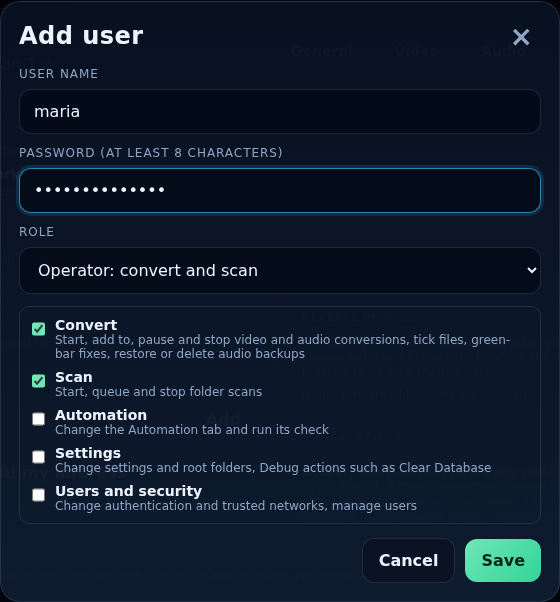
- User name
- The login name.
- Password
- At least 8 characters. Stored as a PBKDF2-SHA256 hash.
- Role
- A shortcut for a set of permissions: Viewer (look only), Operator (convert and scan), Manager (everything but users and security), Administrator (everything), or Custom to tick the permissions yourself.
- Disabled
- When editing: the user cannot log in, and any current logins end.
Permissions
Every user can see everything. On top of that:
| Permission | Allows |
|---|---|
| Convert | Start, add to, pause and stop video and audio conversions, tick files, green-bar fixes, restore or delete audio backups. |
| Scan | Start, queue and stop folder scans. |
| Automation | Change the Automation tab and run its check. |
| Settings | Change settings and root folders, and Debug actions such as Clear Database. |
| Users and security | Change authentication and trusted networks, manage users. |
Controls a user may not use look disabled, and the server refuses them anyway. A user without Settings can still use the page normally.
Adding users: step by step
- Open Settings → Security and press Add user.
- Enter the user name and a password of at least 8 characters.
- Choose a role (or Custom and tick the permissions).
- Press Save. Create at least one Administrator first.
- Choose the mode: Authentication enabled or for untrusted networks, and press Save authentication settings.
Sessions and login
Logging in sets a session cookie (HttpOnly, 30 days, renewed while you use it; marked Secure over HTTPS). The header shows who is signed in, with Change password and Log out. Disabling a user or changing their password ends their logins. After 10 failed logins from one address, logins from it are refused for 15 minutes. Users, sessions and these settings survive Clear Database.
Over plain HTTP, passwords are not encrypted on the network: use HTTPS (a reverse proxy) for access from outside your network.
Trusted networks
Addresses or networks (for example 192.168.1.0/24) that need no login in Authentication for untrusted networks mode. Type one and press Add, or use the presets: Add the private networks (all the private ranges, such as 10.x, 172.16–31.x, 192.168.x and loopback) and Add my address.
Reverse proxies and how client addresses are decided
Whether a client is on a trusted network depends on its address. Behind a reverse proxy every request comes from the proxy, so the real address is in a header the proxy adds (X-Forwarded-For, X-Real-IP). Believing those headers from anyone would let a stranger claim to be on your LAN, so Smart Transcode believes them only from the addresses you list under Reverse proxies:
- A request from an address that is not a listed proxy is taken as it is: its own address counts, and any forwarding headers are ignored.
- A request from a listed proxy is trusted to carry the real client: the headers are read right to left, skipping the listed proxies, and the first address that is not a proxy is the client.
X-Forwarded-Protois honoured the same way (so the session cookie is markedSecurewhen the proxy used HTTPS). - The service is started with uvicorn's
--no-proxy-headersso that only these settings decide.
| Setup | What to do |
|---|---|
| Direct access, no proxy | Leave Reverse proxies empty. Trusted networks are matched against the browser's own address. |
| nginx, Caddy, Traefik or Apache on the same machine or LAN | Add the proxy's address (for example 127.0.0.1 or its LAN address) under Reverse proxies. Make sure the proxy sets X-Forwarded-For. Then trusted networks apply to the real client addresses. |
| Docker with published ports | Clients may all arrive from the Docker gateway (often 172.17.0.1). Never add that as a trusted network: it would trust everyone. If a reverse proxy sets X-Forwarded-For, add the proxy (or the gateway) under Reverse proxies; otherwise use network_mode: host so clients are seen directly. |
Use Your connection to check what a browser looks like to the server after you change these.
Locked out?
See Password management.