Getting started
Smart Transcode is installed and running. These are the steps to go from an empty page to your first converted file.
- Open the page. Go to
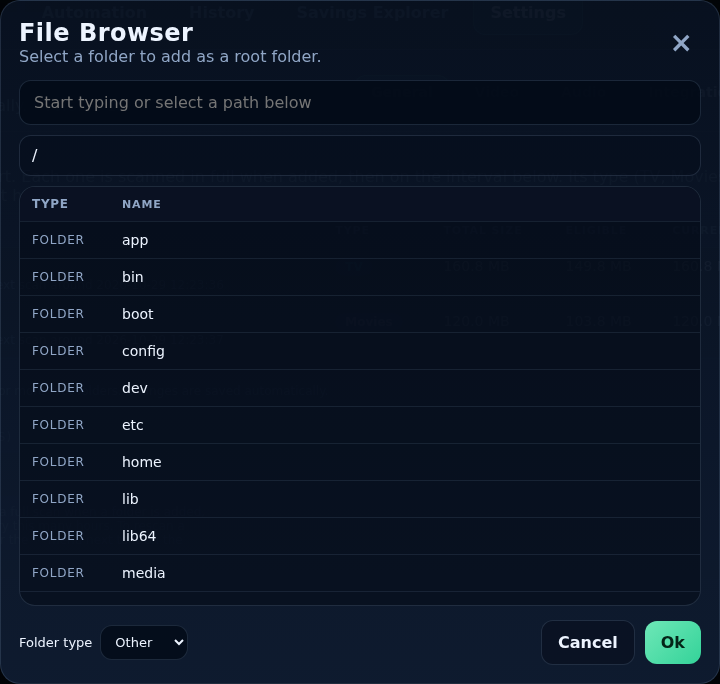
http://your-server:8080(or the port you chose). If you see a login page, authentication is already on; see Security. A new install has no authentication, so anyone on your network can use the page: set it up before you expose the server to other people. - Add a root folder. Open Settings → General and click Add Root Folder. Browse to the folder that holds your media, choose its type (TV, Movies or Other) and press Ok. In a container, browse to the path inside the container (the right-hand side of your volume mapping). The folder is scanned in full straight away; the scan status shows on the Video and Audio tabs. See General settings.
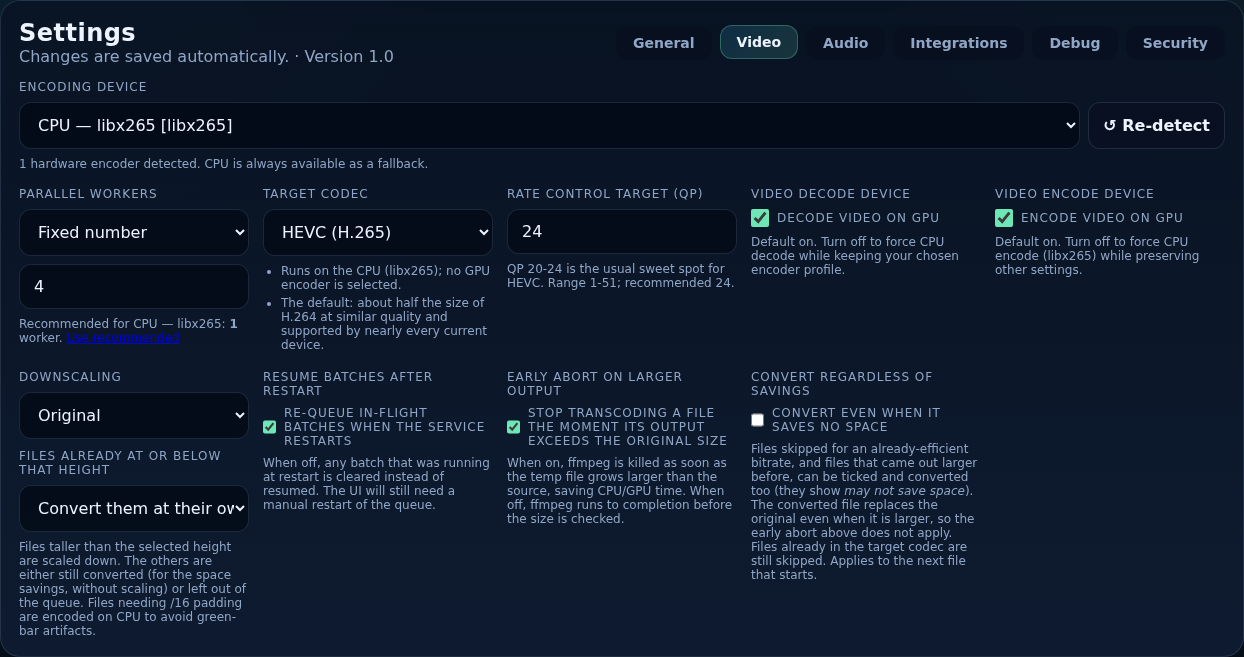
- Choose the encoding device. Open Settings → Video. Encoding Device lists what was detected: NVIDIA, Intel, AMD profiles and the CPU. Pick your GPU. If it is missing press Re-detect; if it is still missing see Troubleshooting. With no GPU, choose the CPU profile (slower, but it works anywhere). Leave Target Codec on HEVC and the quality target (QP) at its recommended value for now. See Video settings.
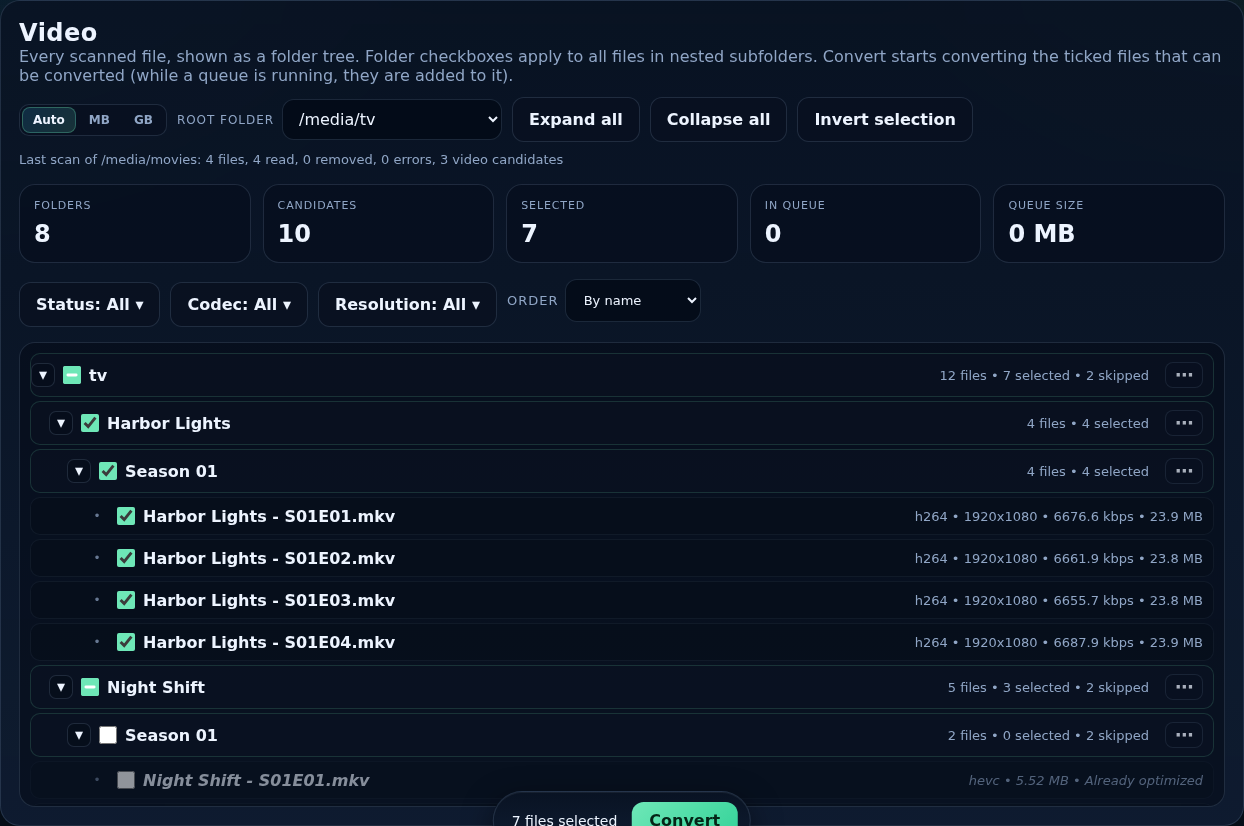
- Look at what was found. Open the Video tab. The files appear as a folder tree. Files marked Ready to convert are the ones worth converting. See Converting video.
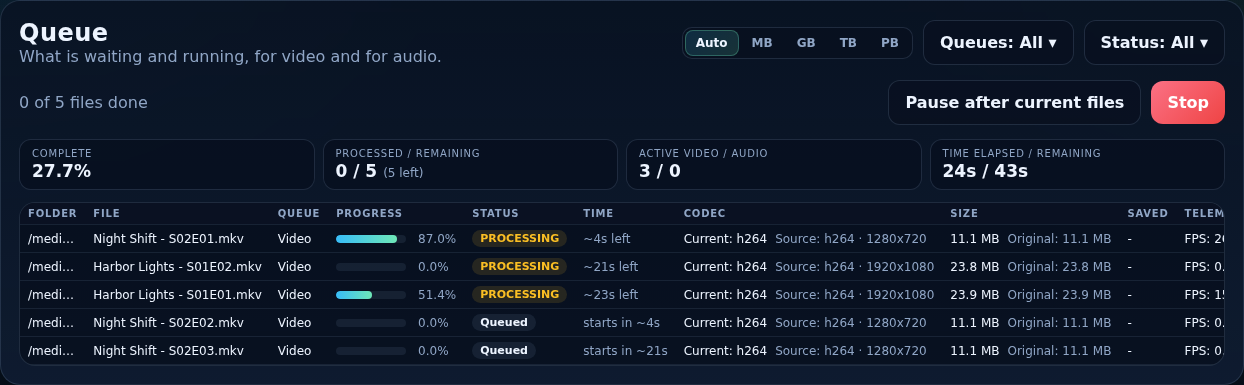
- Convert one file first. Tick a single file, press Convert at the bottom, check the settings in the dialog and confirm. The Queue tab opens and shows its progress. See Queue.
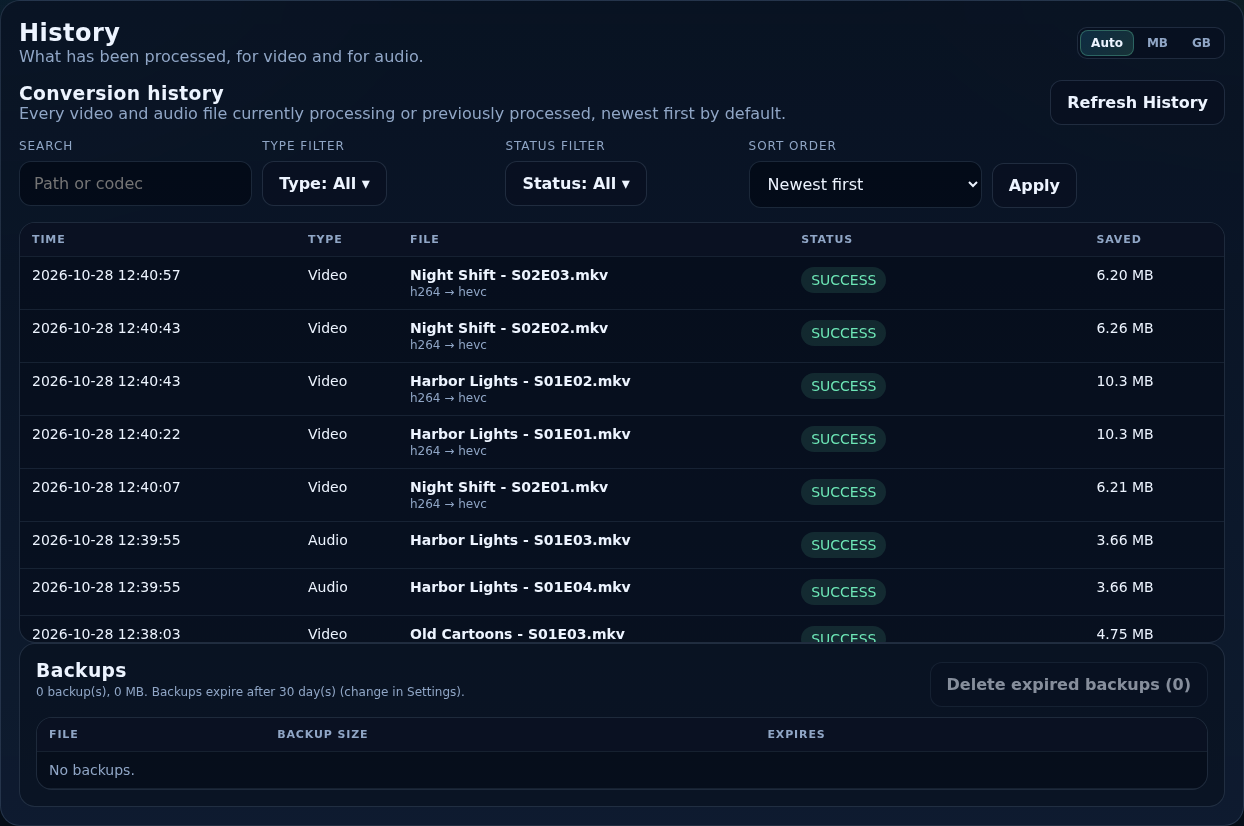
- Check the result. When it finishes, the History tab shows the sizes before and after, and the encoder used. Play the file to be sure you are happy with the quality; if you want it smaller or better, change the QP and try another. See History.
- Convert the rest, or automate it. Tick folders and convert them in bulk, use the Audio tab for sound tracks, or let Automation do it whenever new files appear.
What you will see
Good habits before a big conversion
- Test one file of each kind (a movie, an episode, an old DVD rip) before queueing a library.
- The converted file replaces the original. If you want a safety net for audio, tick Keep a backup of each original file; video conversions do not keep a copy, so keep your own backup of anything irreplaceable.
- Make sure the user the app runs as can write your media: User and group IDs.